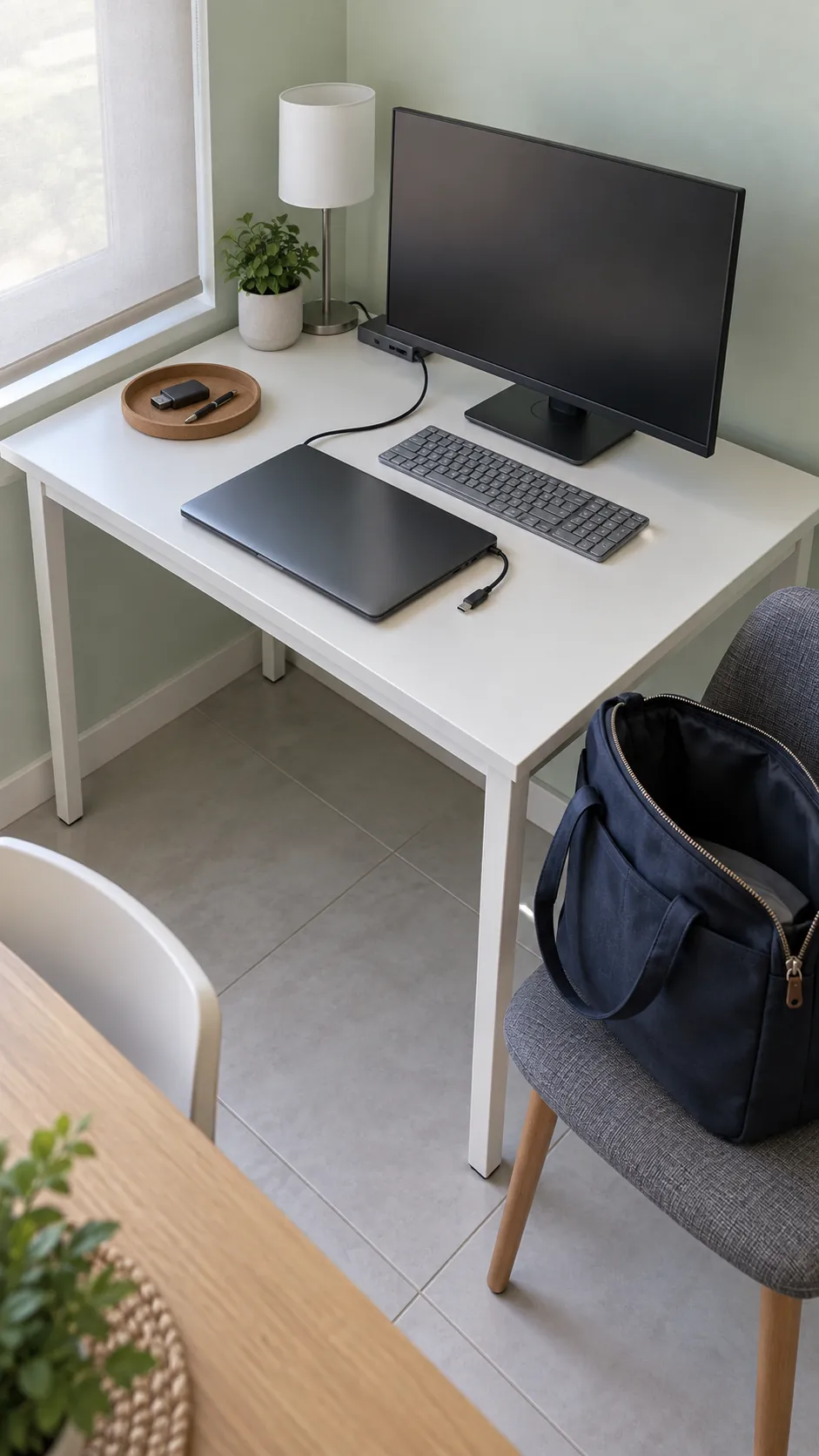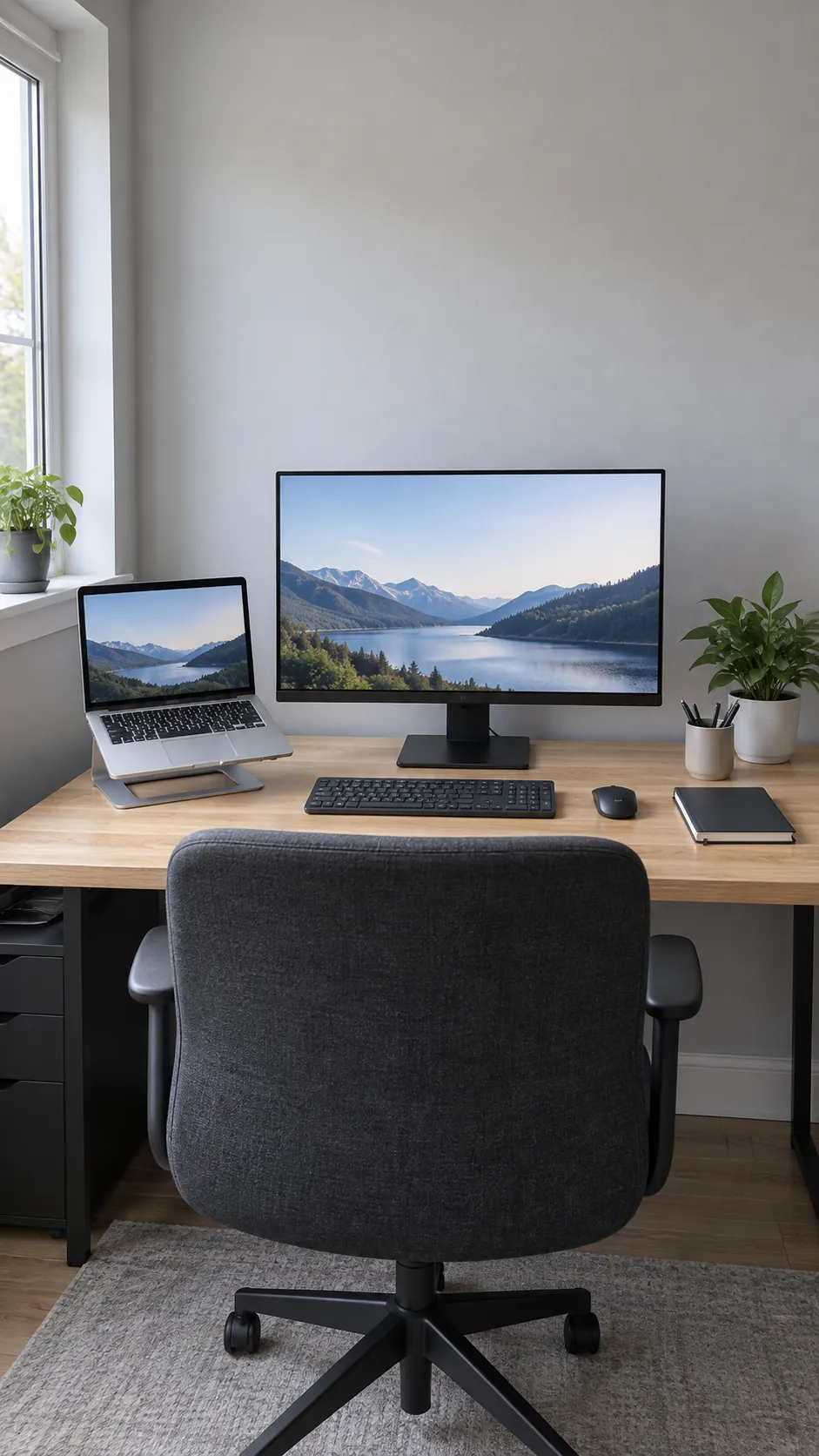
Adding a bigger screen can free your work from a cramped laptop display, but it can also crowd the desk and push your keyboard into an awkward position. Decide which screen does the main work first, then arrange the other equipment around that choice. A comfortable setup starts with a clear line from chair to keyboard to screen, followed by connections you can use without a daily struggle.
Put your main task directly in front of you
Start with the screen you use for most of the day, not the most symmetrical arrangement. Place that screen in front of your usual sitting position, then align the keyboard and mouse with it. If the monitor is your main display, give it the central position and treat the laptop as a secondary screen.
Adjust the display height, text size, and viewing distance together until you can read comfortably without leaning forward or tilting your head. A roughly arm length distance is a starting point, not a fixed rule for every screen or person. If you wear multifocal lenses, a lower screen position may be more comfortable than chasing an identical top edge across displays.
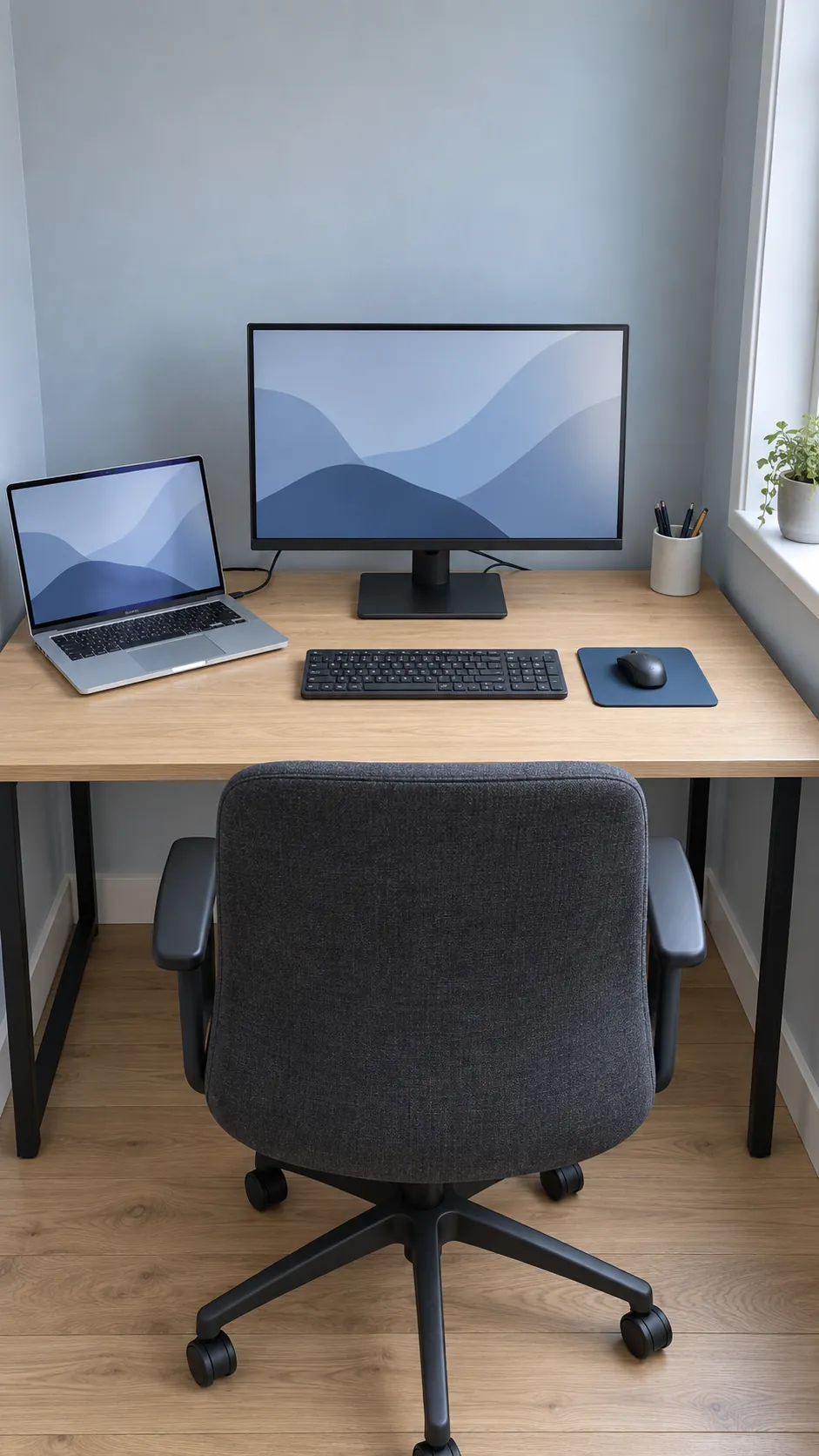
Raise the laptop only if you still need its screen
An open laptop on a stable stand can hold reference material or a call while the main monitor carries your active work. Put it close enough to the monitor that glancing between them does not demand a large head turn. Use an external keyboard and mouse when the laptop is raised; the elevated built in keyboard is not a comfortable everyday typing position.
Check that the stand supports the laptop securely and leaves its vents clear. Keep the laptop camera usable if it handles your meetings, and remember that raising it may change the background seen on calls. If the screen mostly repeats information already on the monitor, closing it may be the simpler layout.
Closed lid operation depends on the laptop, operating system, power arrangement, and manufacturer guidance. Confirm those requirements before buying a vertical holder, and do not put a running laptop into a closed storage box.
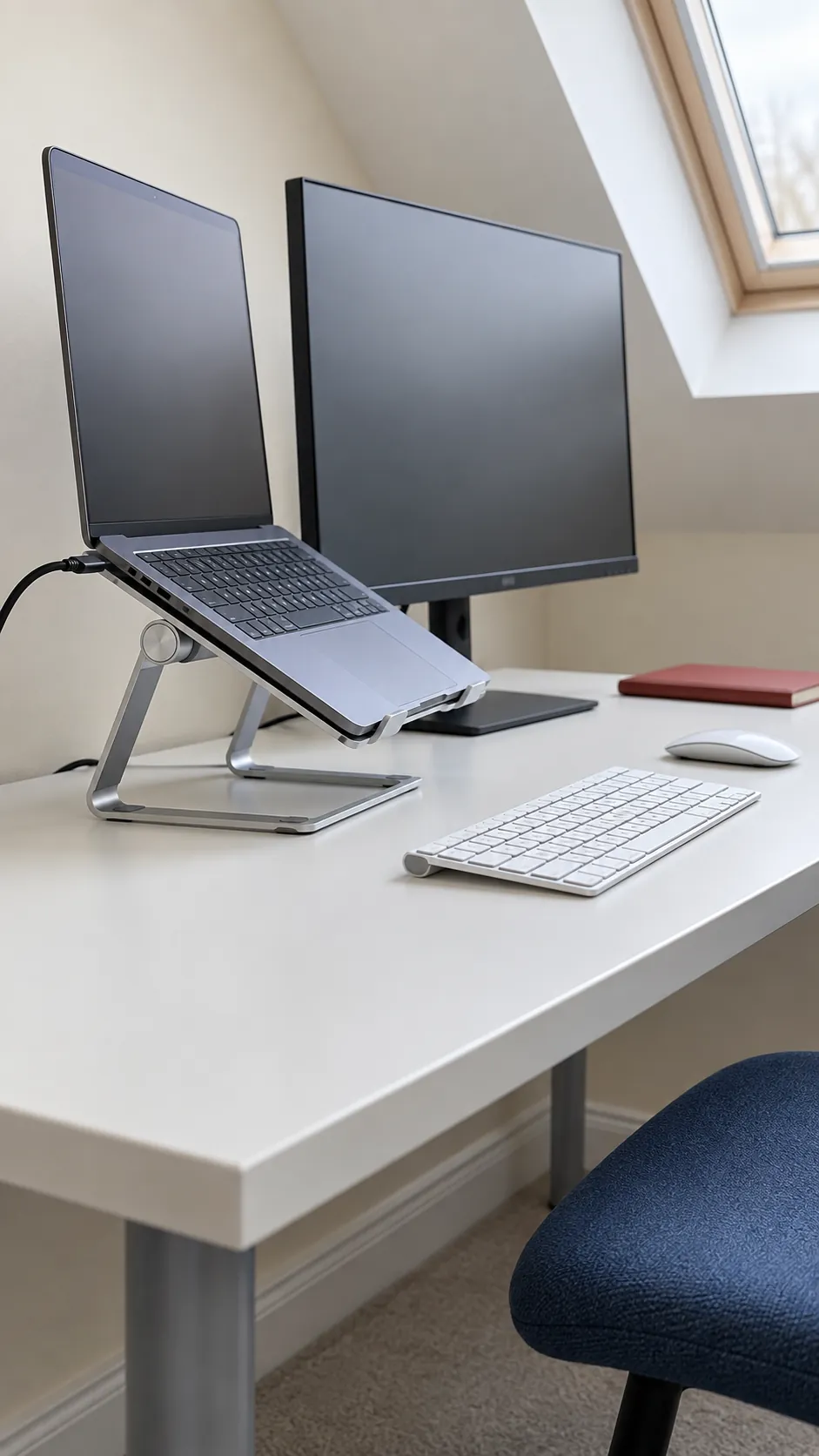
Check the whole connection path before buying a dock
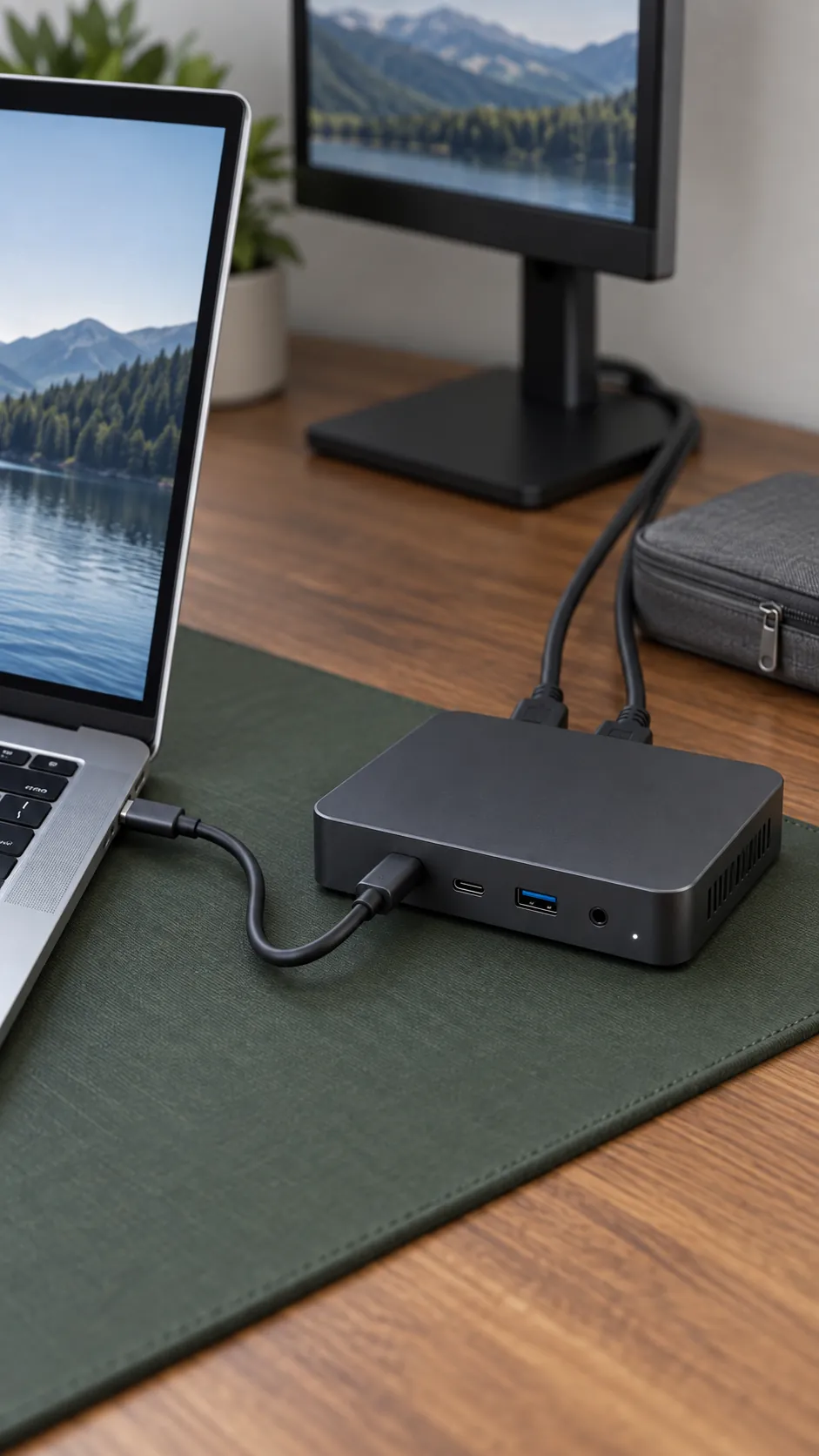
A connector that fits does not guarantee the display features you want. Check the laptop port, cable, dock, and monitor input for support at your chosen resolution and refresh rate. USB C ports can have different capabilities, so look for the specific video and power features listed for your laptop rather than relying on the connector shape.
A dock can simplify daily connection, but its display count and charging output must match the computer and workload. Some laptops restrict the number of external displays, and some docking approaches need additional software or drivers. Verify compatibility with your operating system and any employer restrictions before purchasing.
For troubleshooting, test the monitor with a known compatible direct connection first, then add the dock and other devices. This makes it easier to identify which link introduces a blank screen, reduced refresh rate, or charging issue.
Choose a monitor arm for fit, not just a cleaner photo
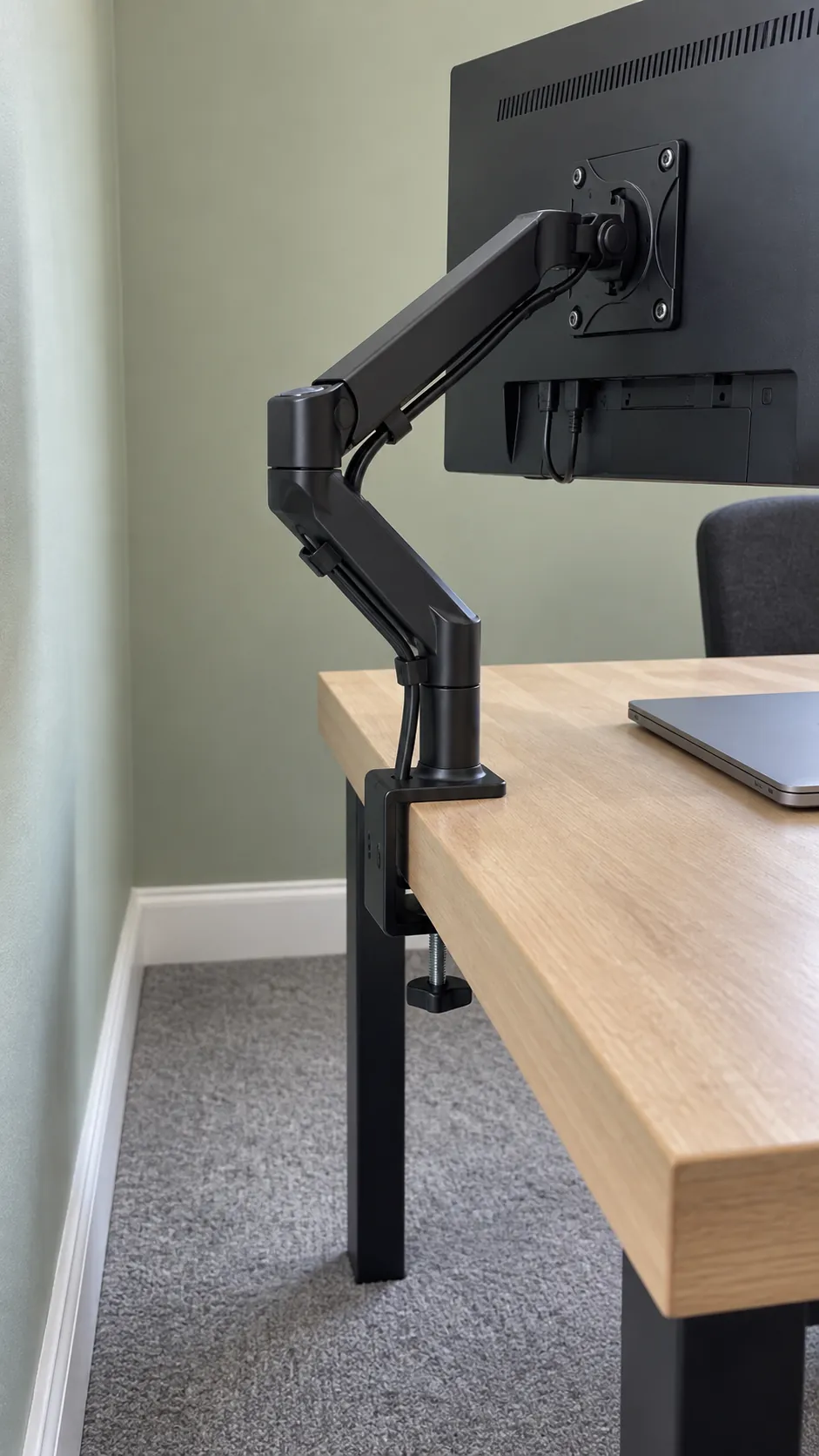
A monitor arm desk setup can free the space occupied by a large stand, but it still needs room behind and above the desk to move. Check the monitor weight, mounting pattern, arm range, and desktop construction before choosing a clamp or grommet mount. A thin or hollow desktop may not accept the same attachment as a solid supported surface.
Try the monitor on its existing stand first to establish a comfortable position. Then choose an arm that can reach that position without forcing the desk away from the wall or placing the screen too close to your face. Follow the arm and desk instructions for installation rather than assuming a reinforcement plate makes every surface suitable.
Add a second monitor only when it has a job
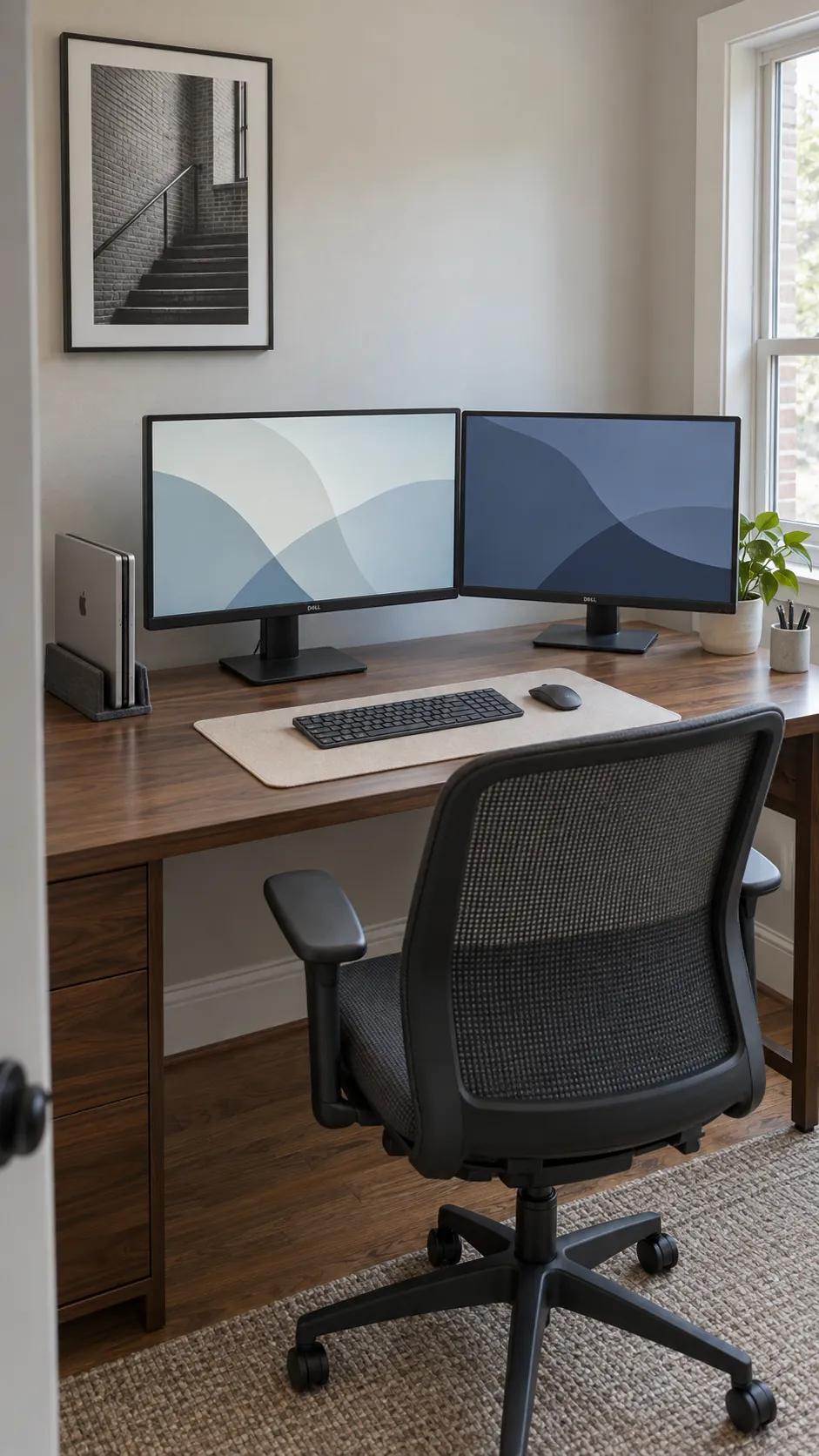
For a 2 monitor desk setup used mostly on one screen, keep the main display centered and angle the secondary display inward. If both screens are used equally, try placing their meeting edges near your centerline and turning both slightly toward you. Test real tasks before committing to either arrangement.
A 32 inch monitor desk setup may need more depth than a smaller screen to keep text and edges comfortable to view. A 3 monitor desk setup also expands the area you scan, so more display space is not automatically more useful. Compare the extra screen with using fewer windows, virtual desktops, or a portable monitor that only comes out for specific tasks.
Leave room for disconnecting and moving
Route cables after the screen positions work for you. Leave gentle slack for monitor movement and enough access to unplug the laptop without dragging a dock across the desk. Keep power supplies ventilated and secure loose leads so they cannot catch the chair or pull equipment off an edge.
On a small desk, a shallow tray for adapters and one reachable charging point may be more useful than an elaborate hidden cable system. A portable monitor setup should also have somewhere to store its cable and stand when it is packed away. Preserve a patch of space for the notebook, drink, or paperwork you actually use.
Finish by running through a normal arrival and departure: connect the laptop, work on your main task, then disconnect and put it in your bag. If that routine is awkward, adjust the layout before adding more equipment.