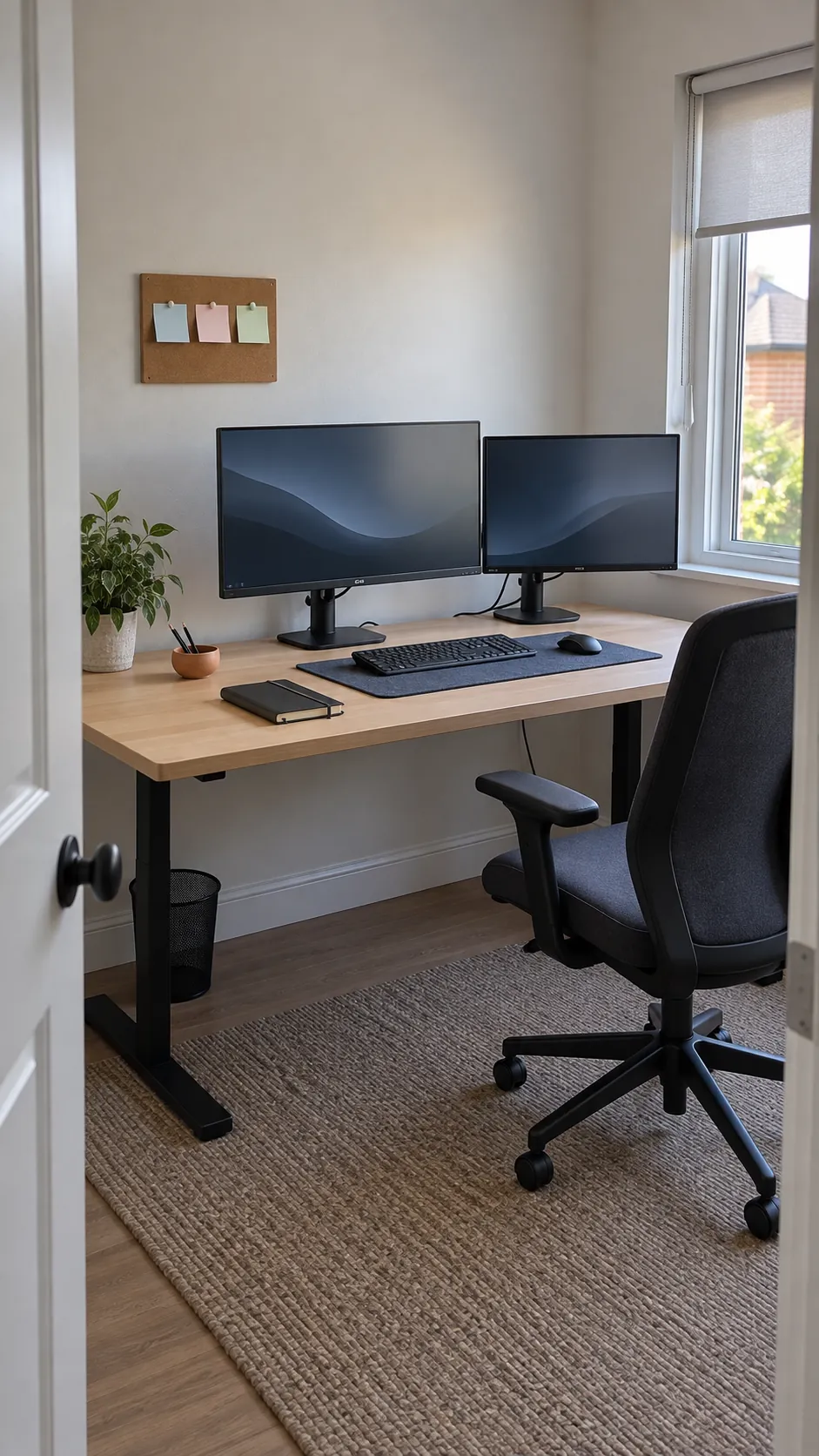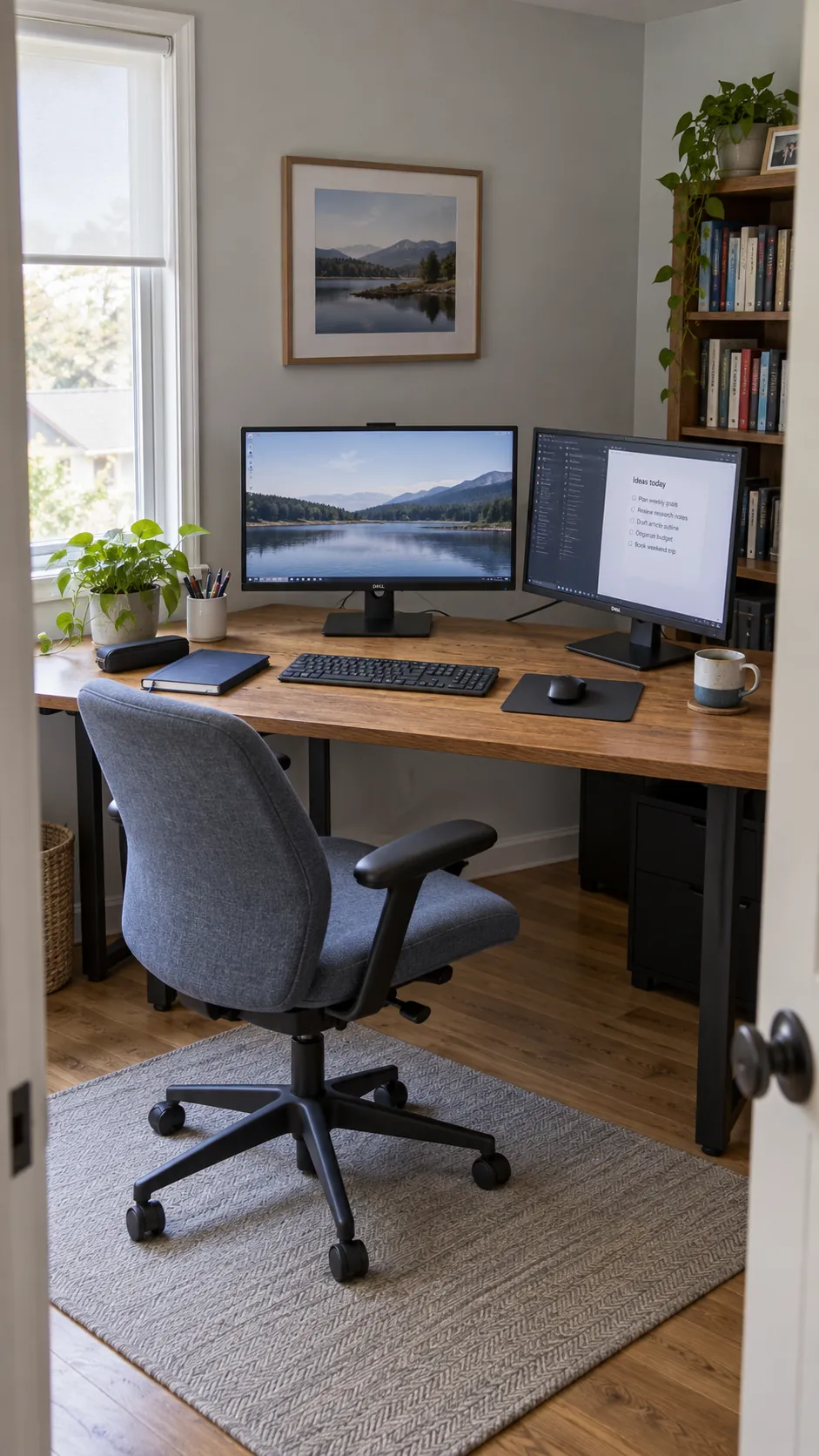
A second screen can solve constant window switching while creating a new problem: your keyboard, chair, and main task no longer line up. Start with the work you do most often, then give each display a clear role. A comfortable layout leaves space for your hands, controls glare, and lets you change position without fighting the furniture.
Center the screen you actually use most
A balanced photograph is not always a balanced working position. If one screen holds your main task, place it directly behind your keyboard and let the reference screen sit beside it. Angle the secondary display inward so you can glance across without turning your whole desk into a wide viewing arc. Test the arrangement during a normal work session before buying matching accessories.
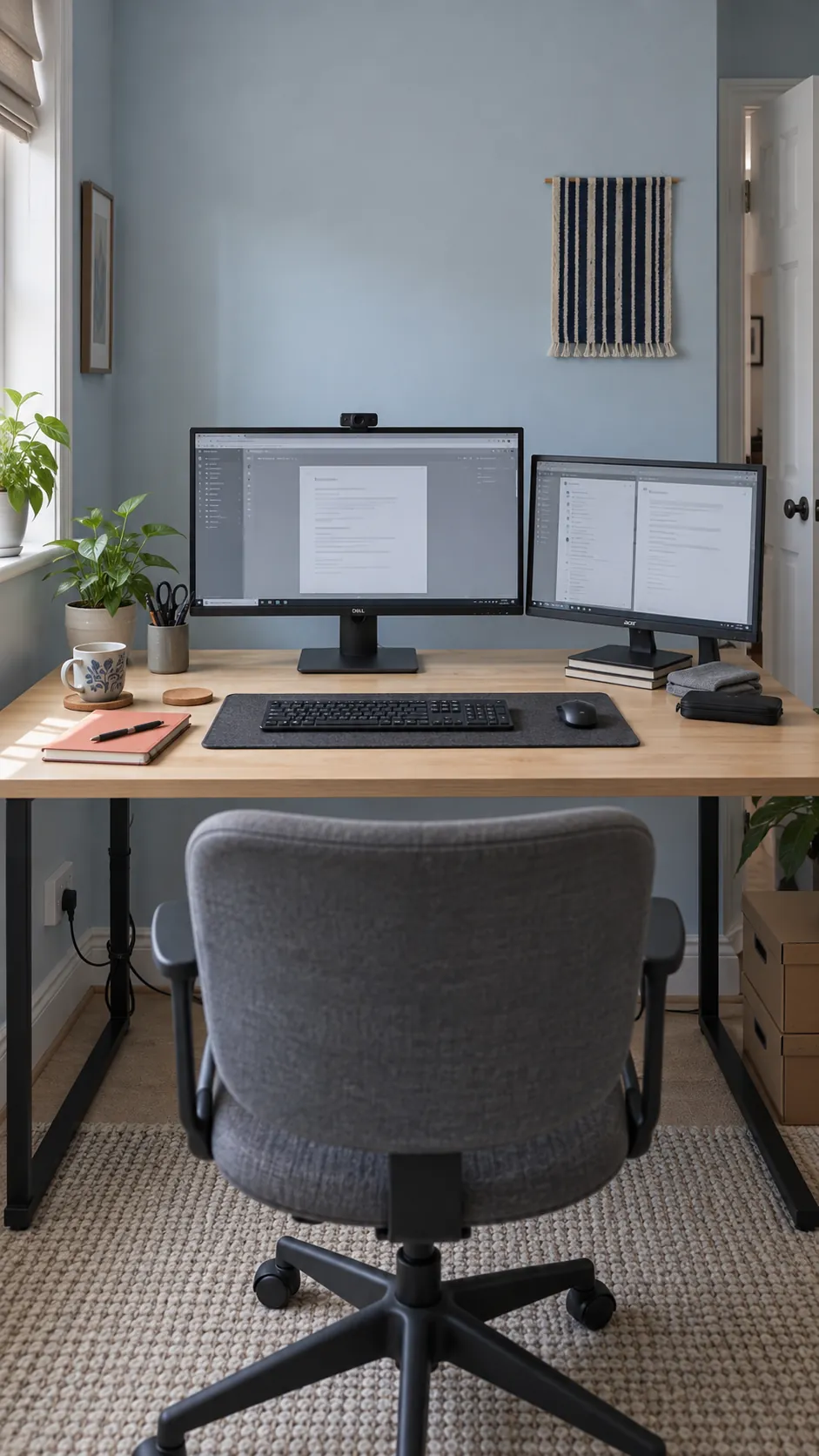
Build a shallow arc for equal screen use
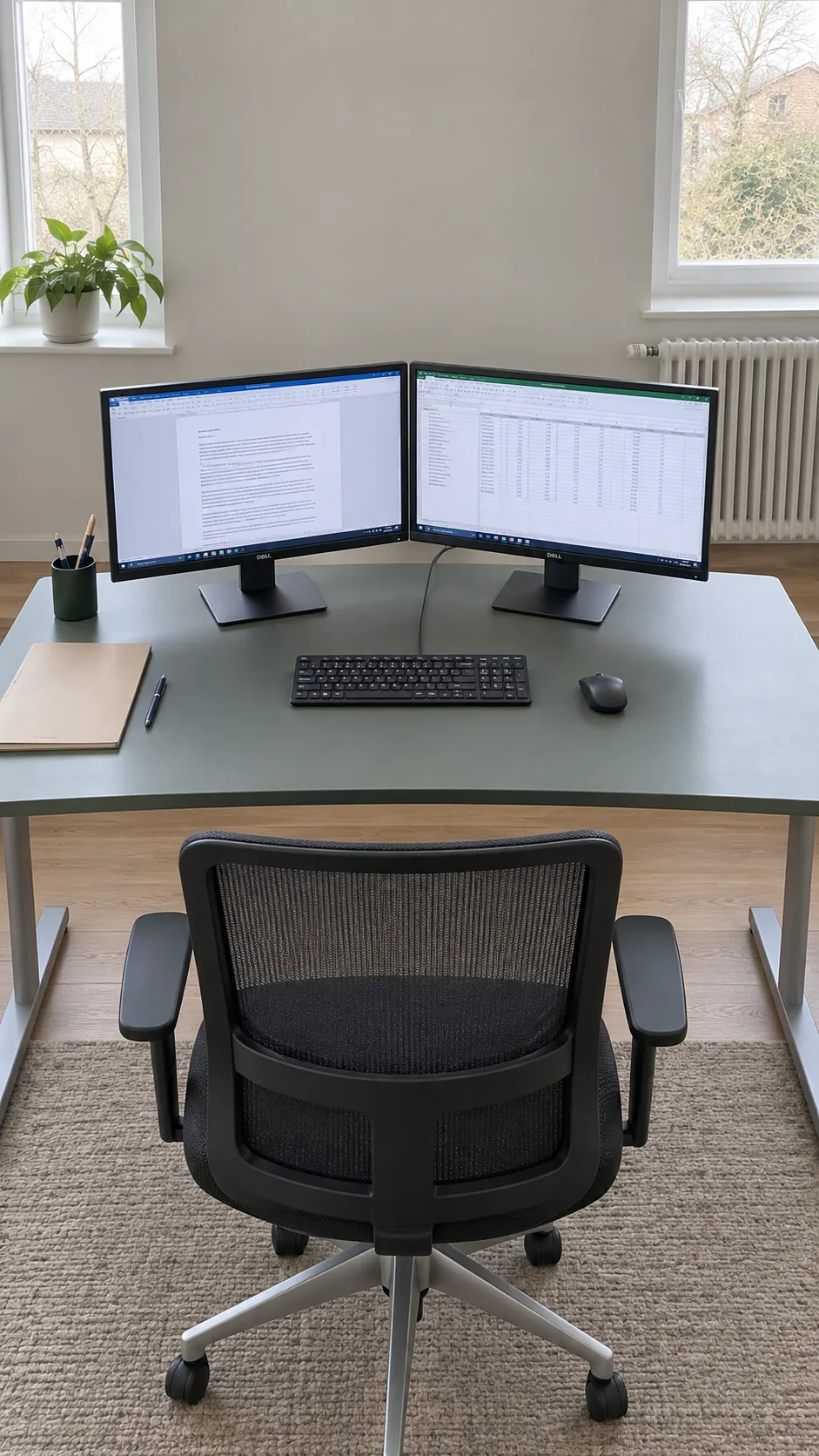
When you compare two documents constantly, position the displays at similar distances and bring their inner edges close together. A gentle inward angle can make the pair easier to scan than two flat screens stretched across a wall. Center your chair and keyboard on the join only if your attention really is shared equally. Increase text size if you find yourself leaning toward either panel. Comfort matters more than creating a perfectly straight line.
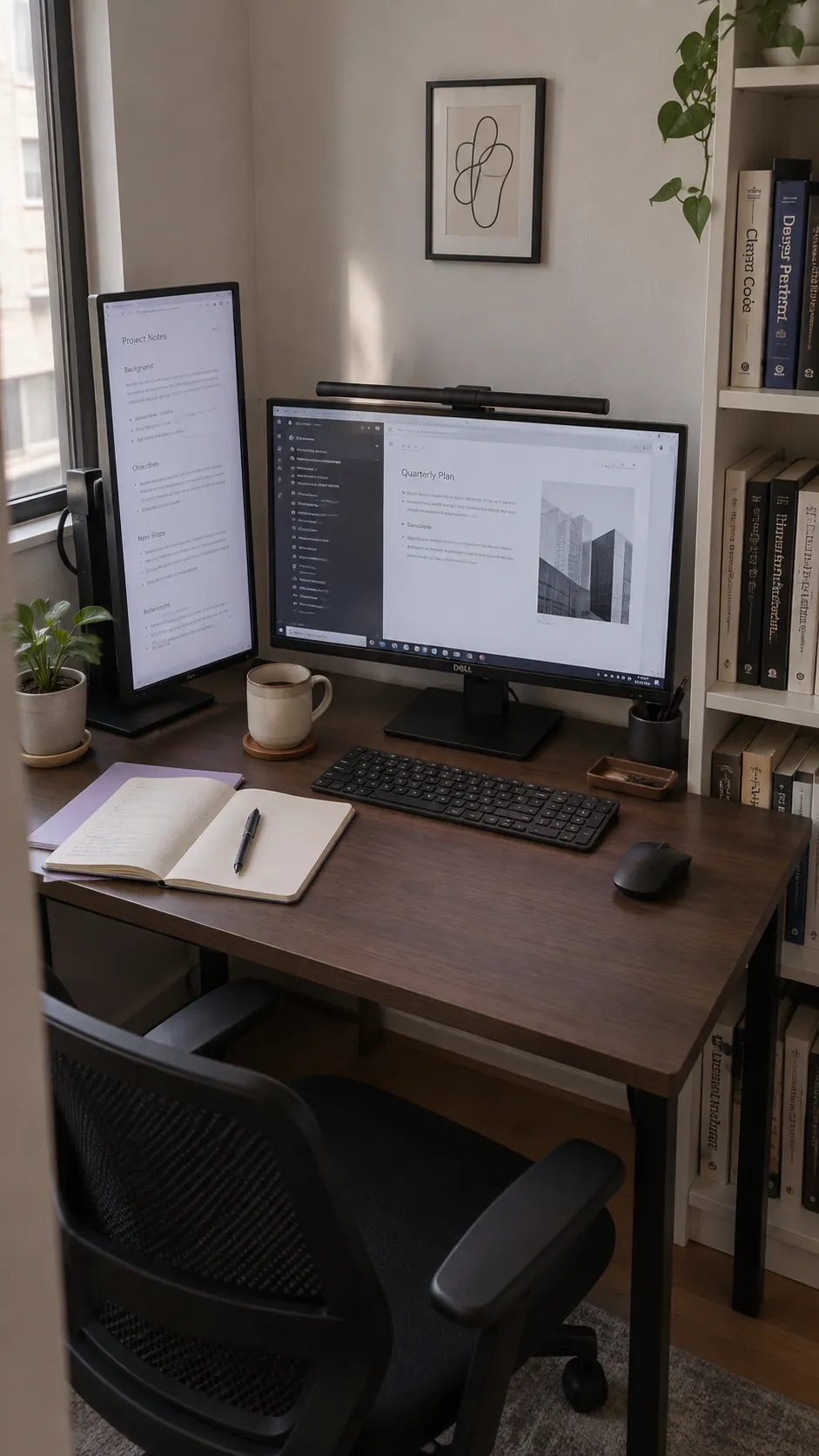
Turn the reference monitor vertically
A portrait display can hold a long document or a chat thread while leaving more horizontal room for your main screen. Check that the monitor supports rotation and that its viewing angles remain comfortable in that position. Align the area you actually read with your natural gaze rather than forcing the top edges to match. This compact dual screen desk setup is especially useful when a wide second panel would crowd the mouse.
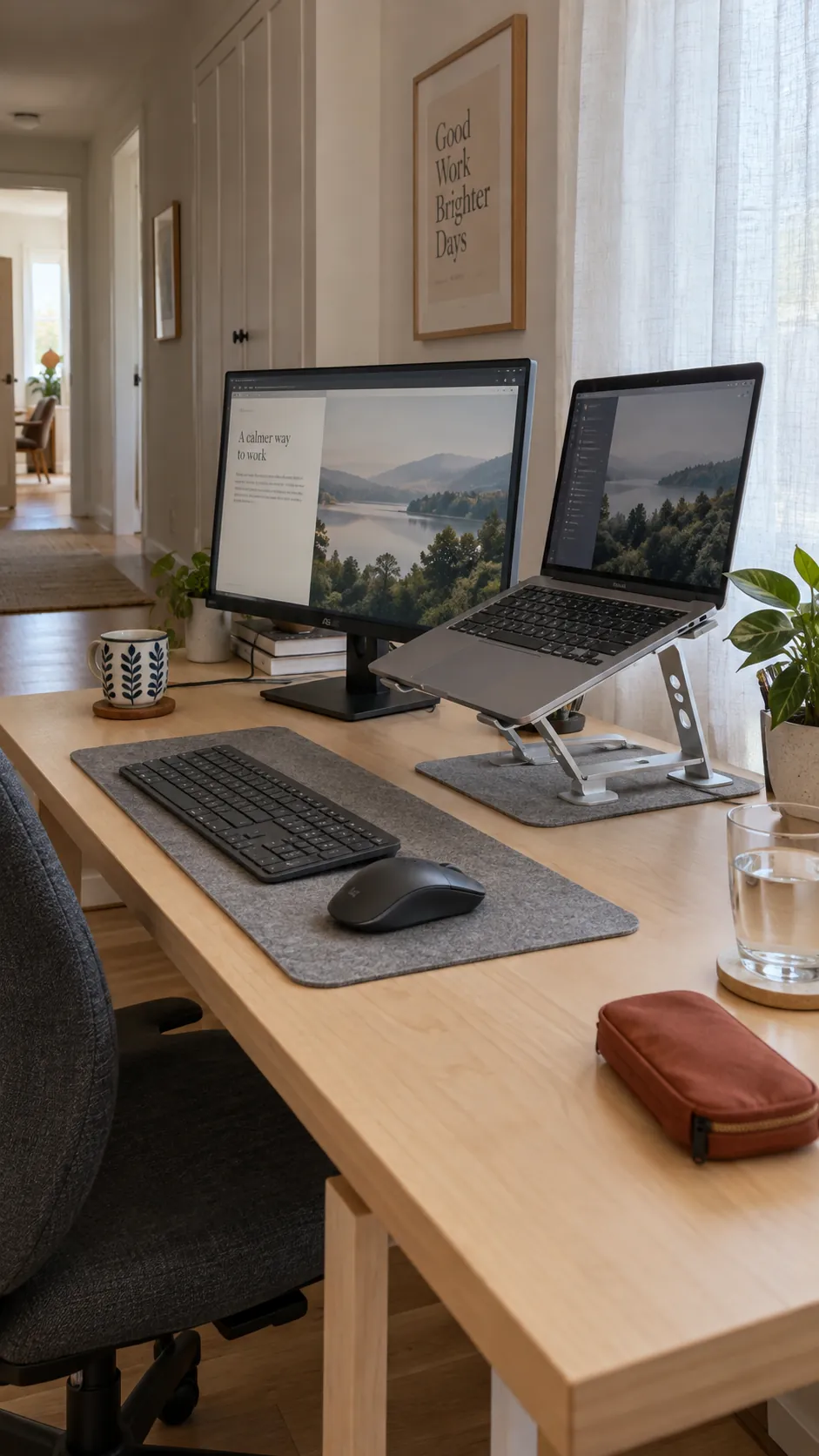
Keep the laptop beside one external display
A laptop and one monitor can provide two useful screens without filling the room with extra equipment. Raise the laptop only enough to make its display comfortable, then use a separate keyboard and mouse so its built in keyboard does not dictate your posture. Confirm that the laptop stand leaves its vents clear. A dock is convenient, but check its display support against your exact computer before ordering.
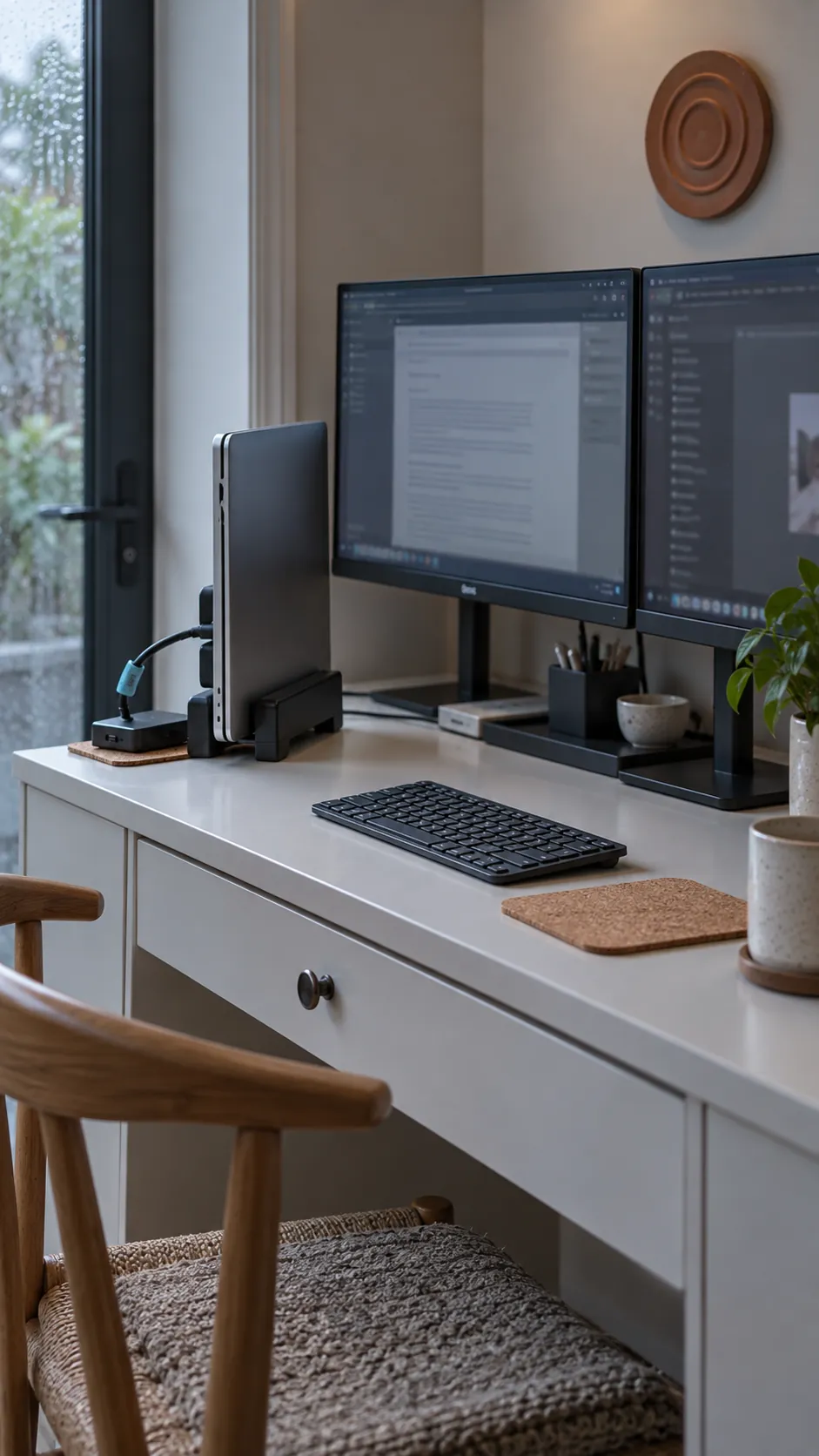
Dock the laptop to clear the working surface
If two external monitors already cover your work, a supported closed laptop arrangement can reclaim the space occupied by a third screen. Place the computer in a stable vertical stand with ventilation unobstructed and follow its manufacturer’s requirements for operation with the lid closed. Check the number of independent external displays your model supports, because two sockets do not guarantee two extended desktops. Keep the power button or docking connection accessible for daily use.
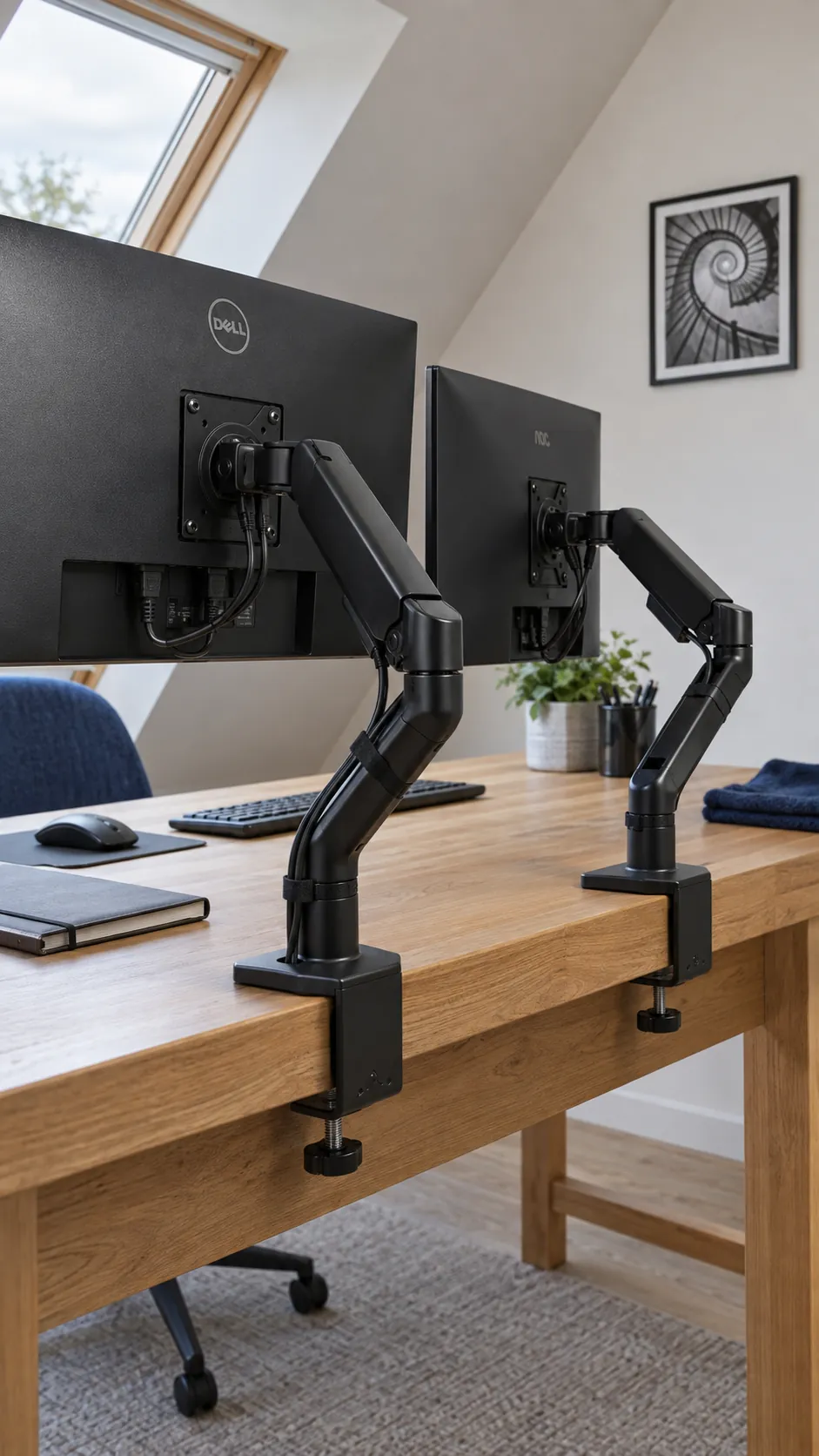
Use separate arms on a narrow desk
Two individual arms offer more placement flexibility than a fixed double bracket. You can offset their clamps to avoid a drawer rail and adjust one monitor without moving the other. Verify each arm’s weight range, mounting pattern, clamp opening, and required rear clearance before purchase. A hollow or fragile desktop may need a different mounting solution, not simply a tighter clamp. Leave enough slack in the cables for the full movement you intend to use.
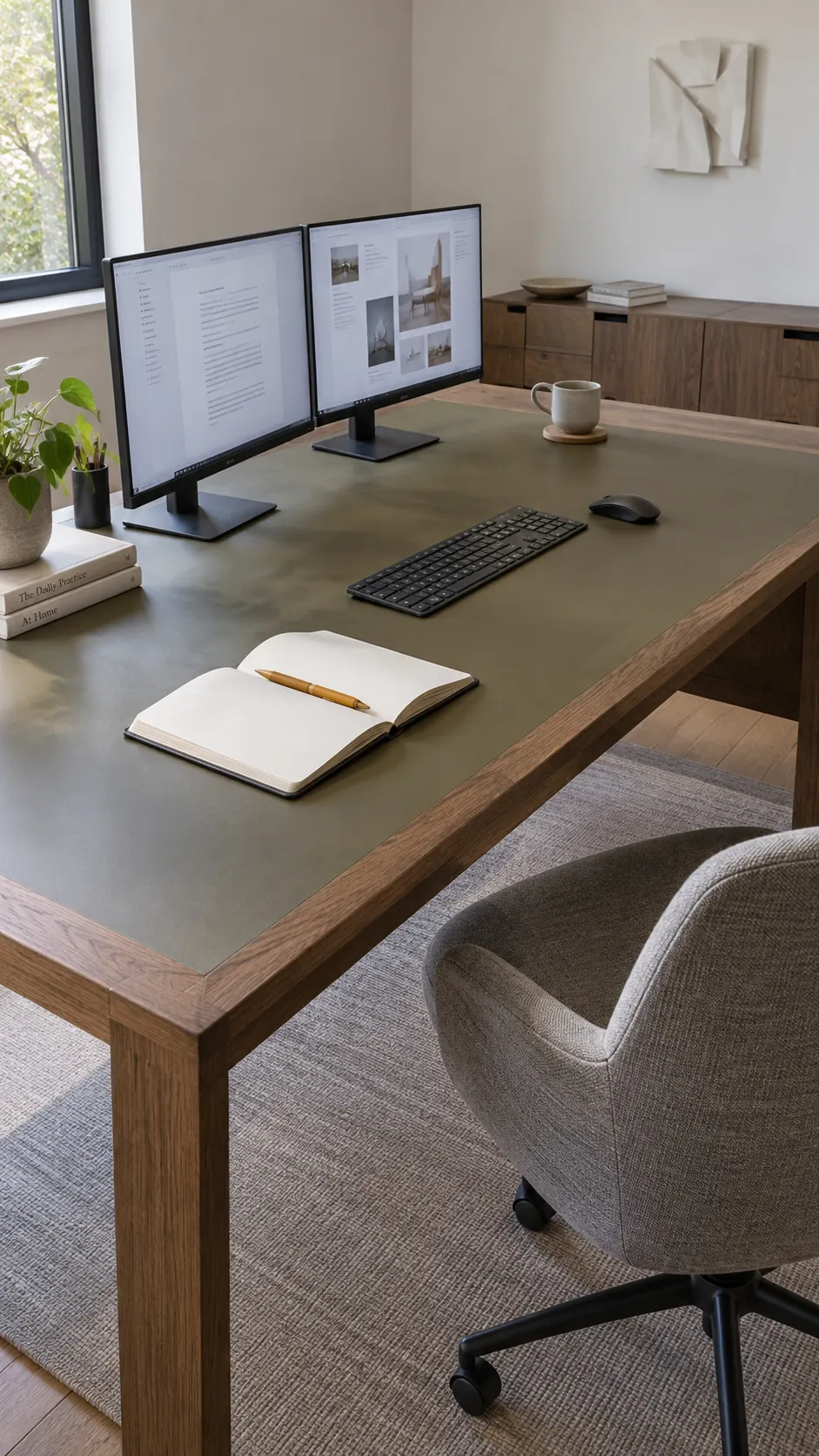
Give a deep desktop a clear front zone
A deeper work surface lets the screens sit back while preserving room for your forearms and a notebook. Start at a comfortable reading distance and adjust text scaling instead of pulling a large monitor toward your face. Keep frequently used objects near the keyboard so the extra depth does not become a long reach. Measure the desk together with the chair clearance, since a generous tabletop still needs room behind it.
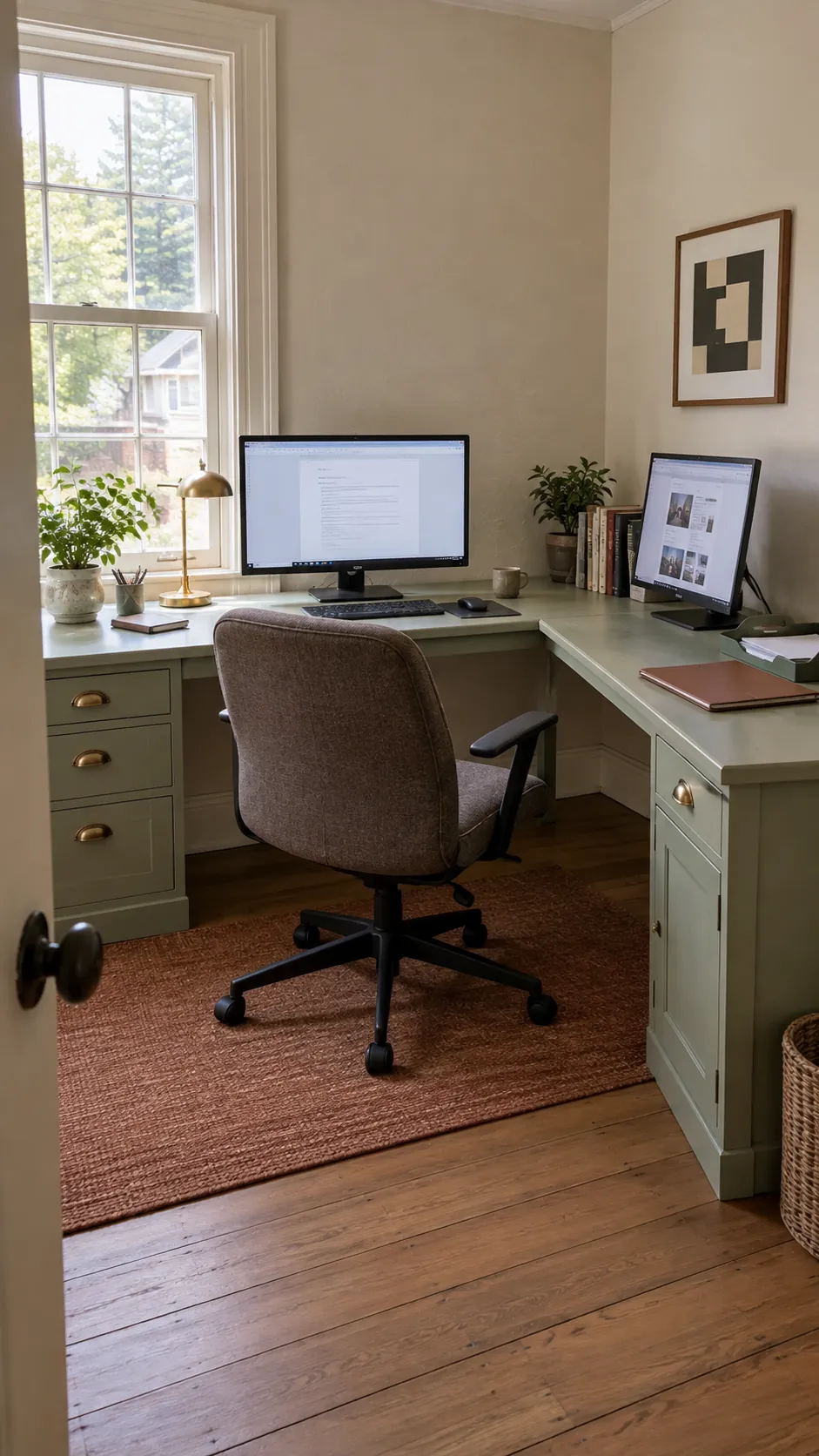
Put the second screen on the return
An L shaped desk can separate focused computer work from paperwork without scattering everything across one long wall. Keep the main monitor on the straight working edge and use the return for a secondary display you consult occasionally. Avoid placing a frequently used screen so far around the corner that you must keep twisting your neck. A swivel chair helps you change tasks, but it does not fix a badly placed primary screen.
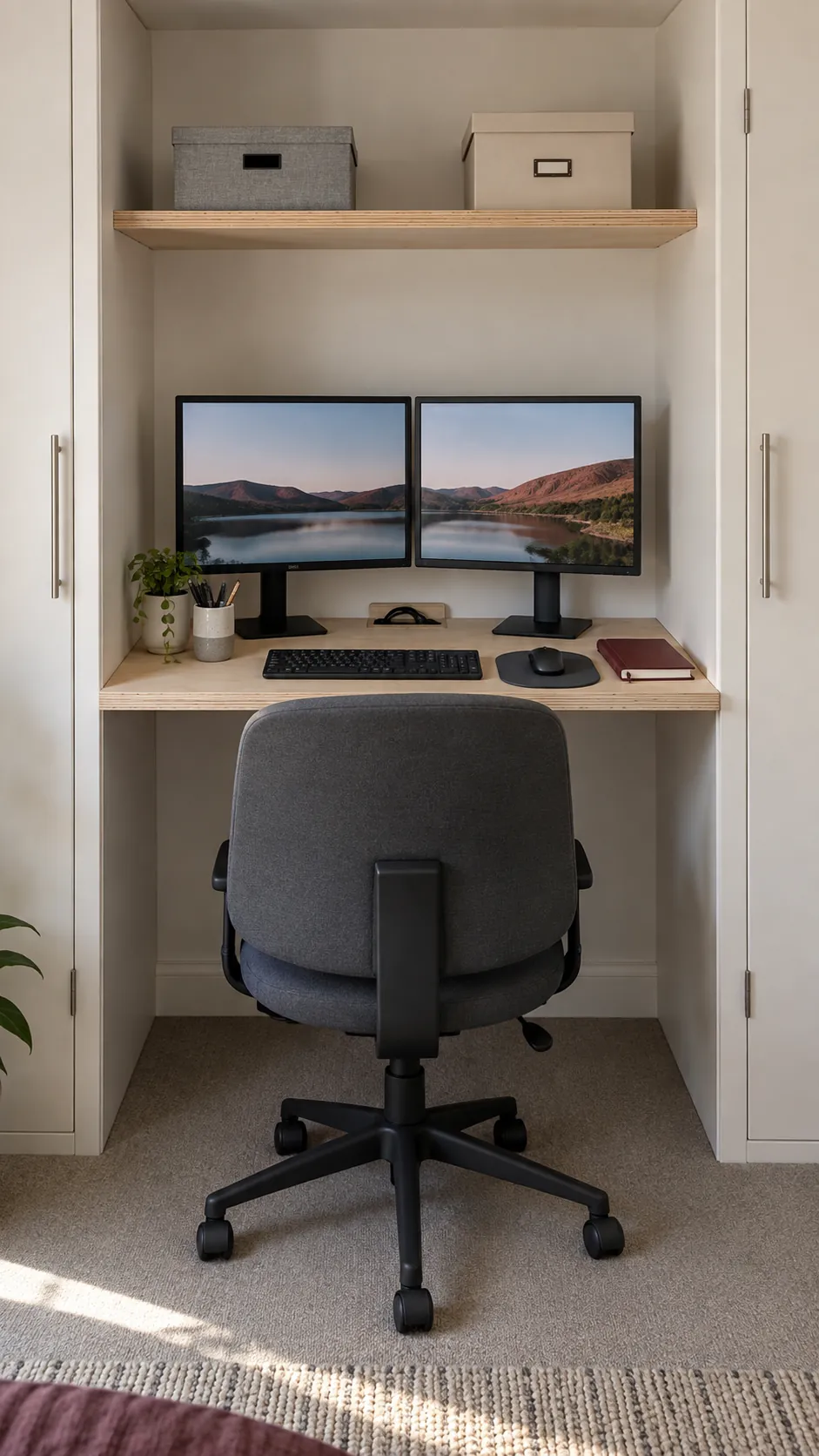
Fit a compact pair into an alcove
An alcove can make a home office feel contained, provided the equipment has room to breathe. Measure the opening, screen widths, stand footprints, and any arm movement before deciding that two monitors will fit. Smaller displays may serve the space better than oversized panels pressed against the sides. Leave a route to reach the cables without dismantling the entire desk. Keep shelving above the screens shallow enough that it does not interfere with adjustment.
Set the desk beside the window
Positioning the desk roughly perpendicular to a window often makes daylight easier to manage than facing directly toward or away from it. Check reflections on both screens at the time of day you normally work. An adjustable blind lets you soften a bright patch without darkening the whole room. Keep the attractive view to the side if facing it forces you to work against glare.
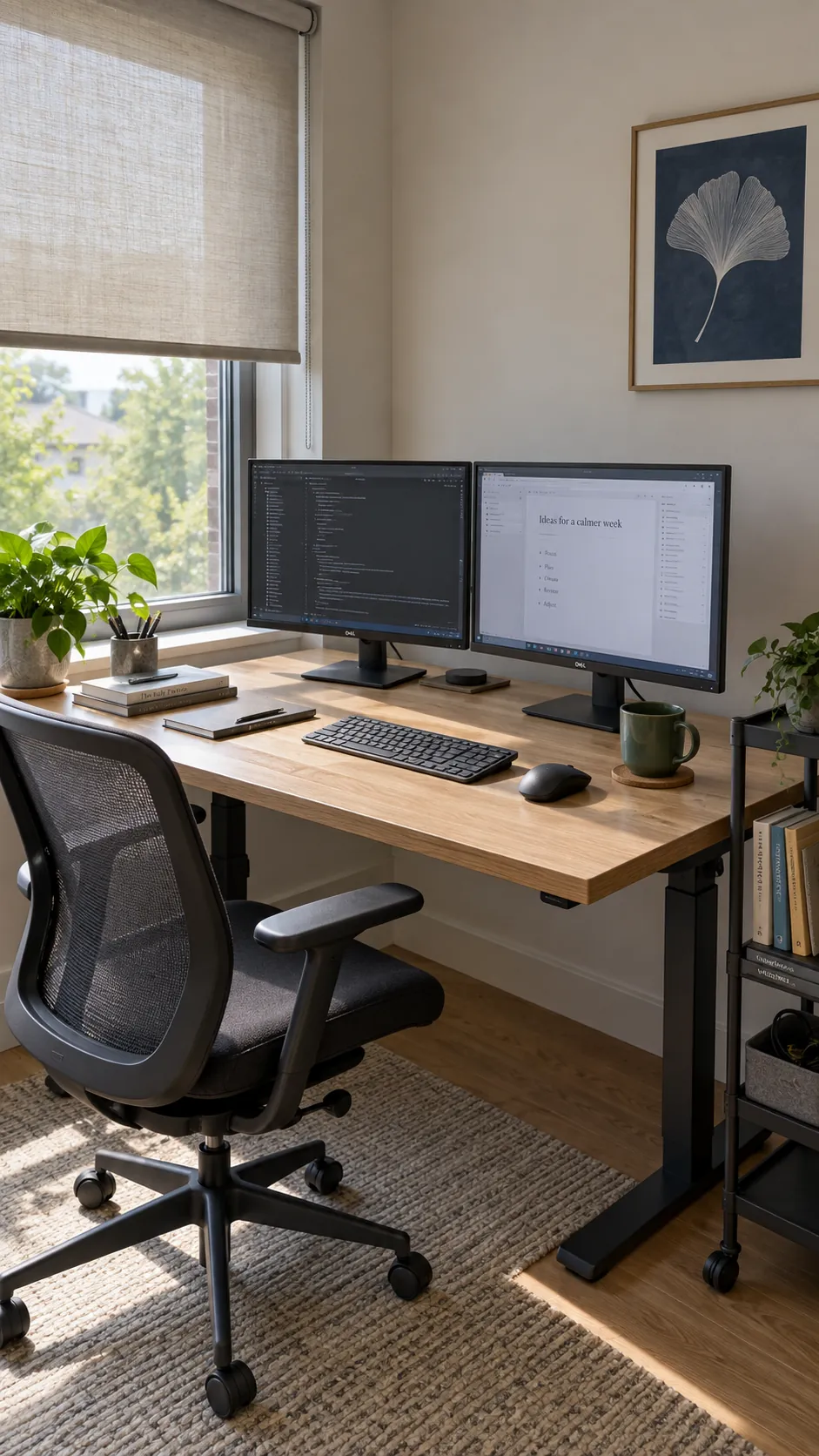
Make a standing setup move as one
A height adjustable desk needs a cable plan that works at its highest and lowest positions. Secure the power strip according to the desk manufacturer’s guidance, then allow the mains cable and any fixed connections enough travel. Check that monitor arms remain stable and that nothing catches on a windowsill or shelf. Save comfortable seated and standing positions only after adjusting the keyboard and screens together. Change position through the day instead of treating standing as a posture you must hold.
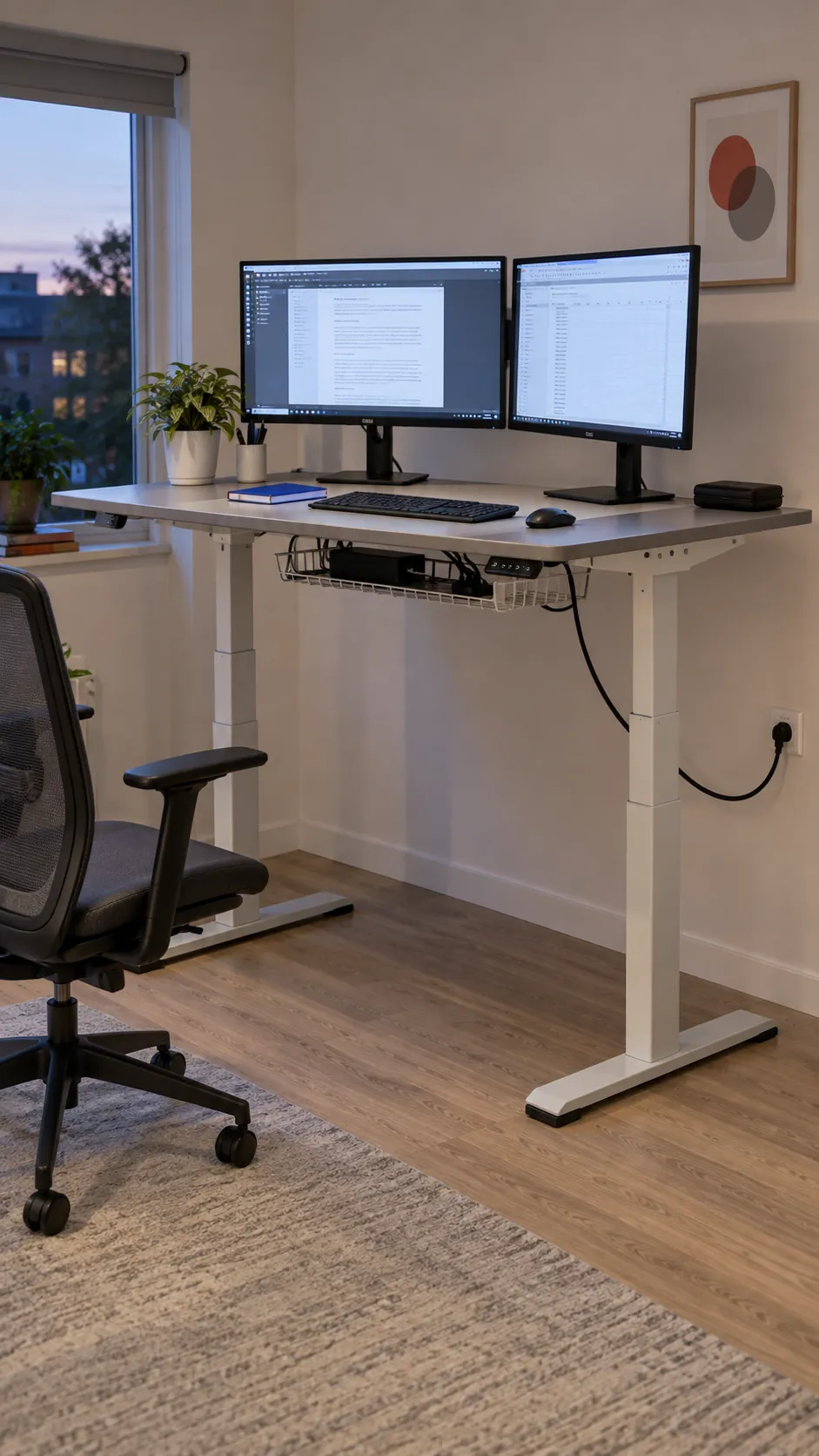
Create a rental friendly freestanding station
A sturdy desk and the monitors’ original stands can make a useful office without drilling into walls. Choose adjustable stands where possible and check that both bases fit without forcing the keyboard toward the front edge. Use removable cable ties around the desk structure rather than adhesive products on delicate finishes. This approach also makes it easier to pack the setup when the room or lease changes.
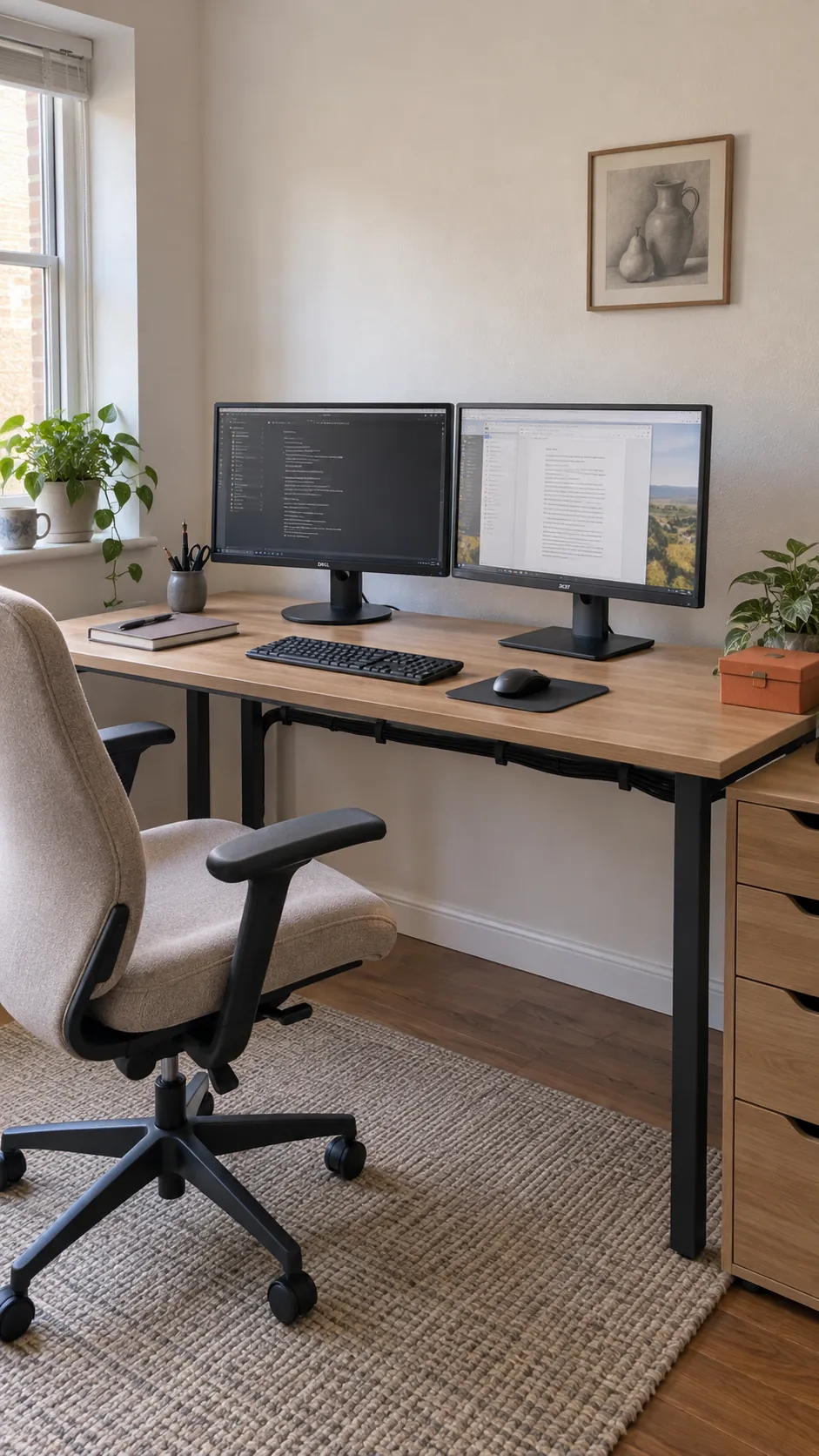
Let the office share a bedroom quietly
In a bedroom, keep the work zone compact enough that the chair can tuck away and the route to the bed stays open. A pair of modest screens on a simple desk usually leaves more breathing room than a large gaming style arrangement. Store the keyboard and small work items when the day ends, and turn off decorative lighting that would intrude on sleep. Choose a location based on usable clearance before matching the desk to the bedside furniture.
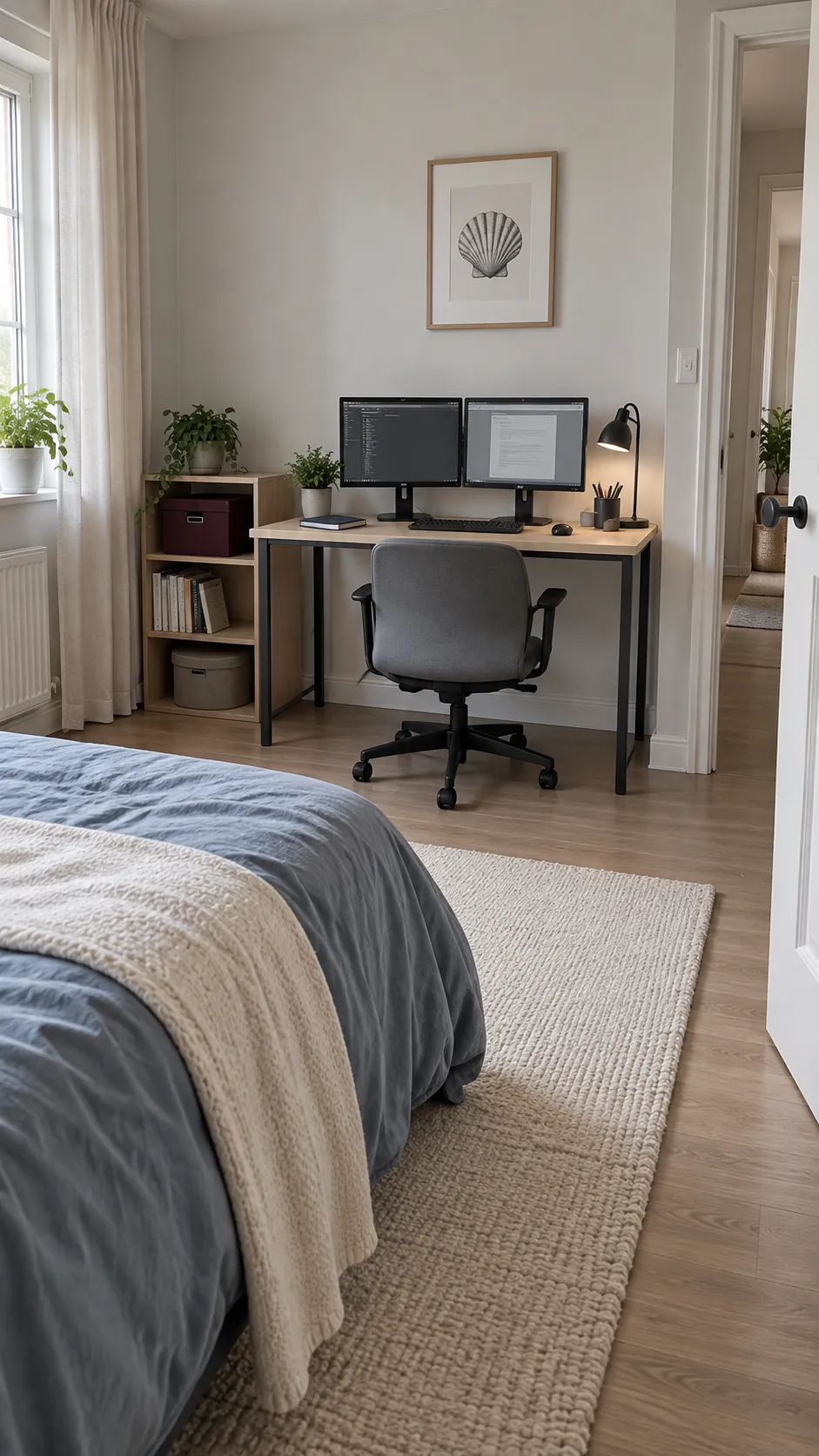
Use a living room console with real desk depth
A console can blend into a living room, but many consoles are too shallow for two monitors and a keyboard. Look for a surface with enough usable depth and a base that leaves your knees free. Keep the main screen centered on the seating position and use a smaller reference display if the wall space is limited. A closed storage box can hold chargers and stationery when guests arrive. Avoid treating a decorative shelf as a load bearing desk unless it was designed for that use.
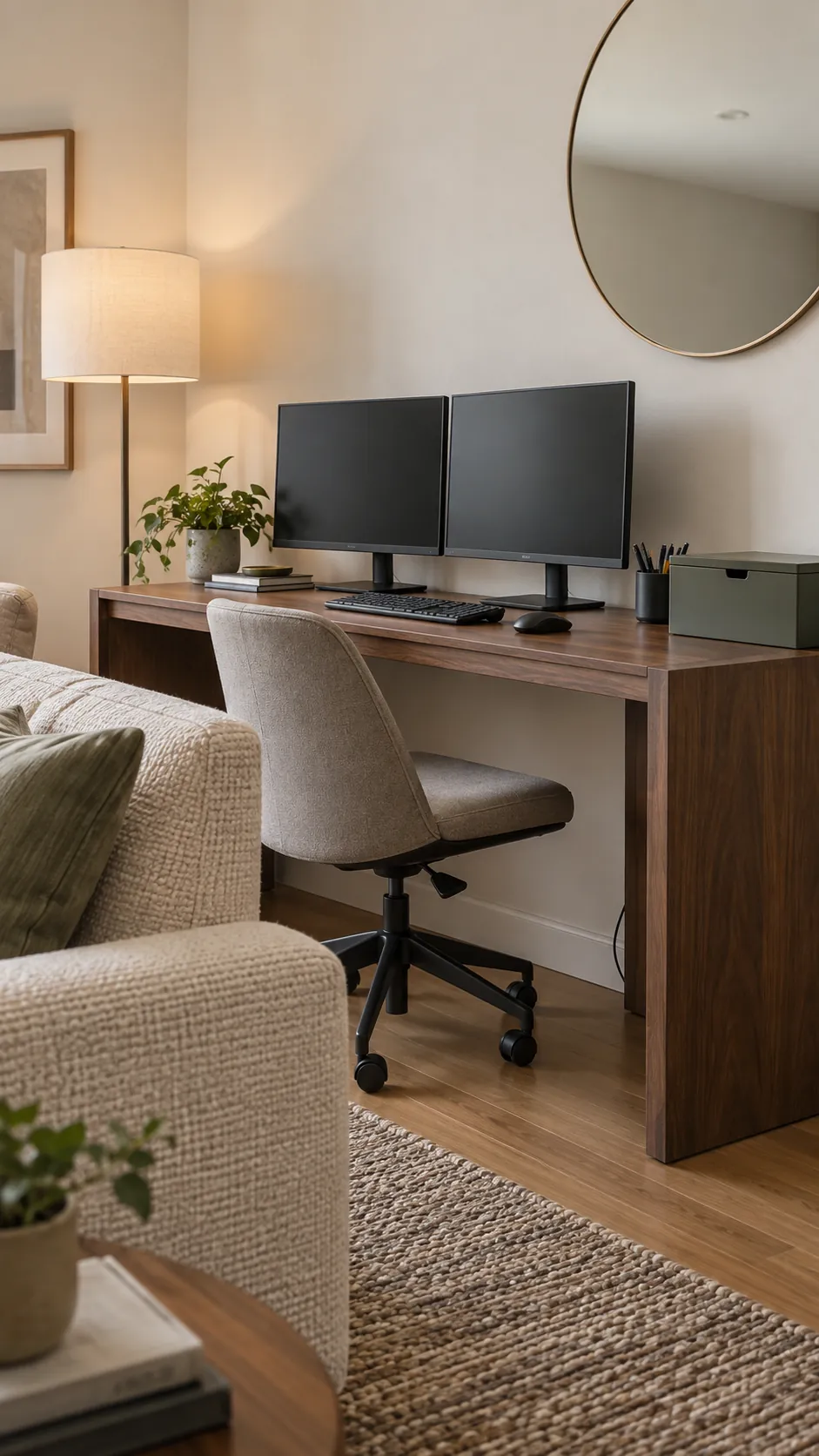
Reserve one side for paper work
A two screen desk setup does not need to consume the entire tabletop. Move the displays into one coherent working zone and leave a clear area for reviewing printed pages or writing by hand. Keep that area within a comfortable reach, with a task light that does not reflect in the screens. The benefit is a usable landing place for today’s work, not another surface to fill with permanent organizers.
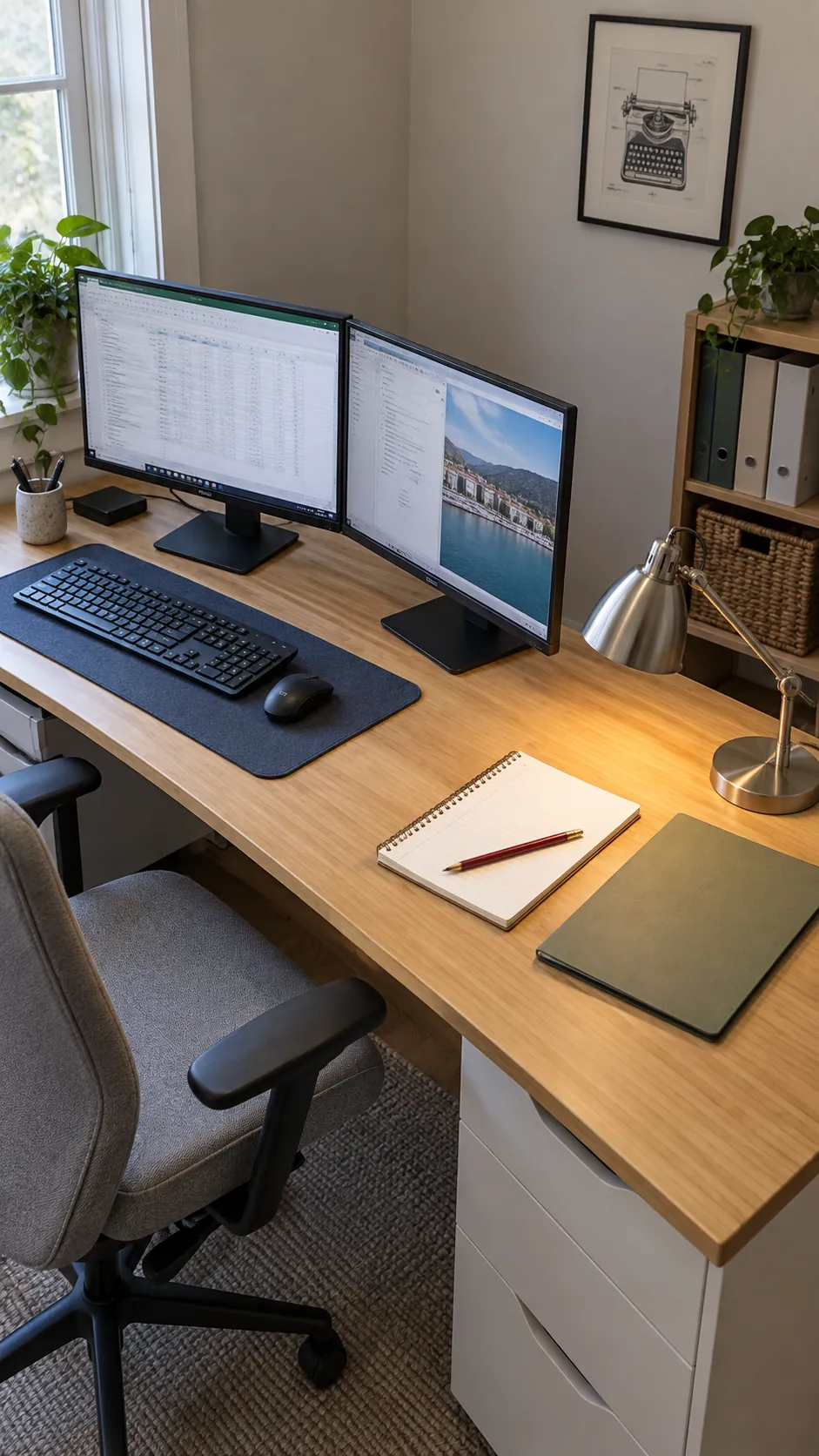
Separate the desk from the video call background
Place the monitors where you can work comfortably, then decide what a camera will show behind you. A quiet shelving area or plain wall can give calls a calm background without forcing the desk into the darkest corner. Keep the camera close to the screen where you watch the other person so your gaze does not wander far away. Test the framing with your actual meeting software before buying lights or decorative objects.
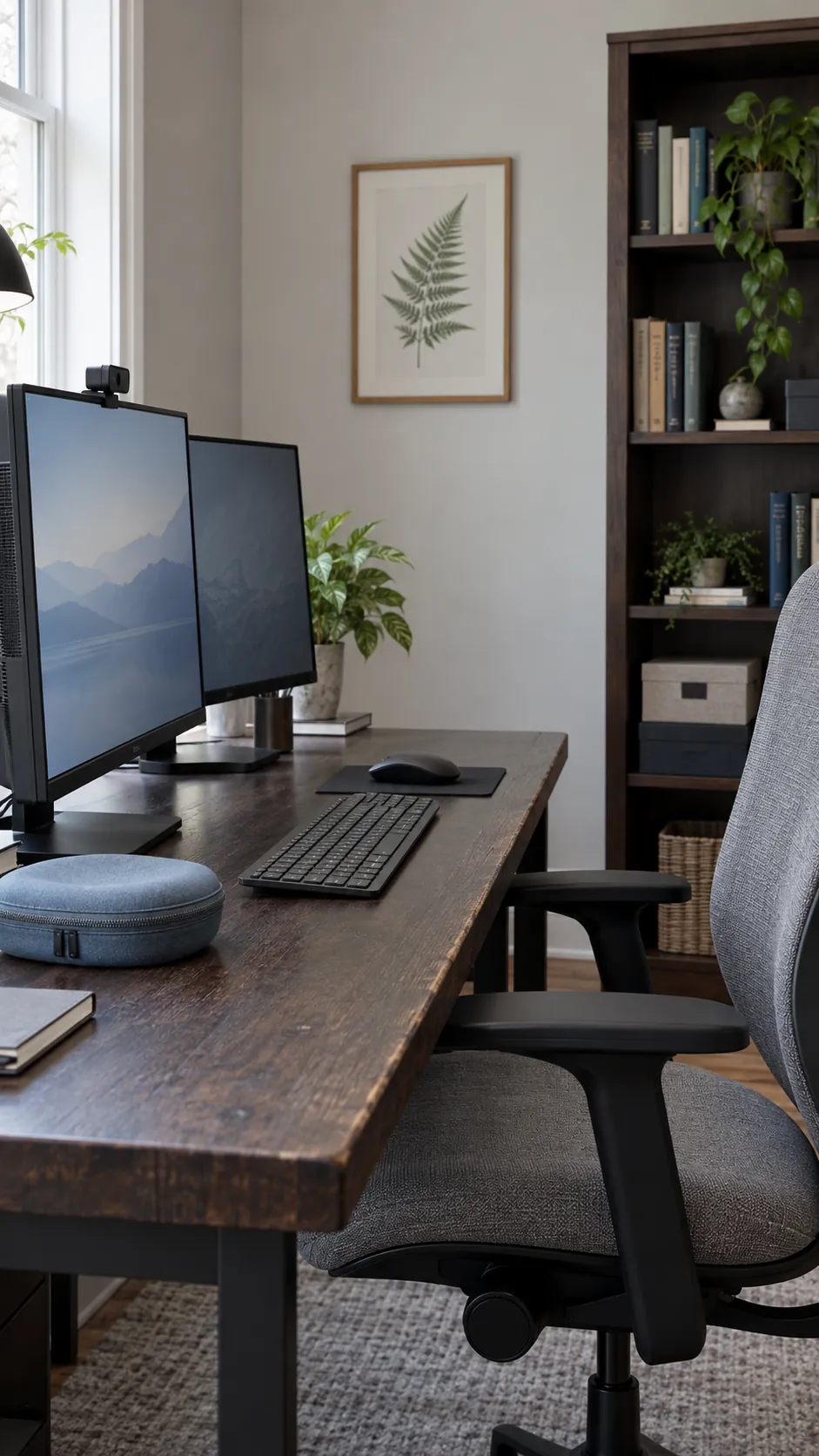
Bring a small task light below the glare line
A desk lamp should illuminate the notebook or keyboard without becoming a bright reflection on either display. Try it beside the writing area and move it while both screens show dark content, which makes reflections easier to spot. Choose adjustable output so the desk does not feel harsh after daylight fades. Screen brightness and room lighting should feel comfortable together rather than competing for attention.
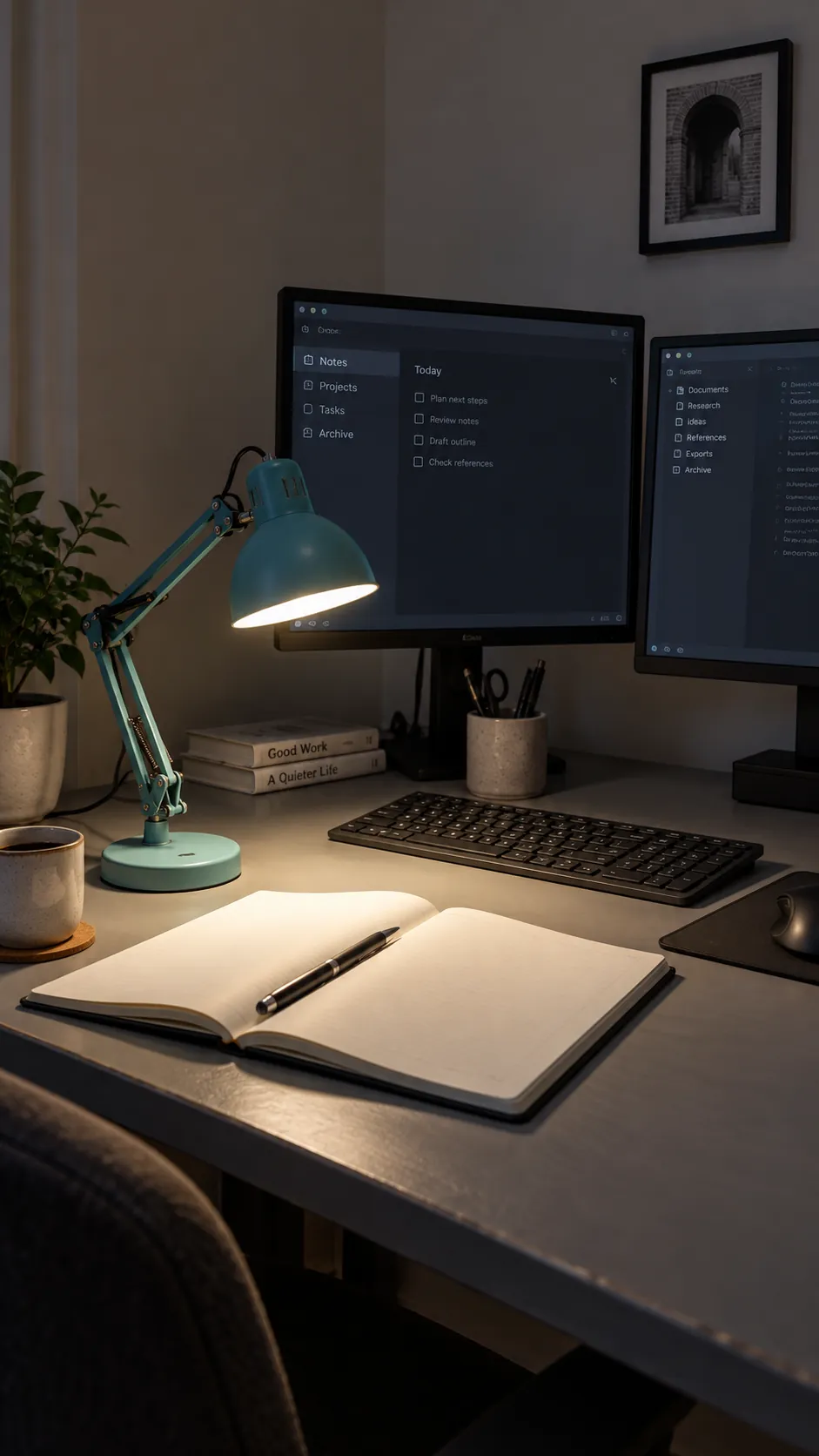
Use a shelf riser only when height calls for it
A low shelf can create storage beneath the monitors, but raising already high screens makes the setup less useful. Check your seated viewing position first and use independently adjustable stands if the two panels need different heights. Choose a riser rated for the combined load and wide enough to support both bases fully. Slide only low use items underneath so reaching for a notebook does not disturb the displays. Leave ventilation openings and adjustment controls accessible.
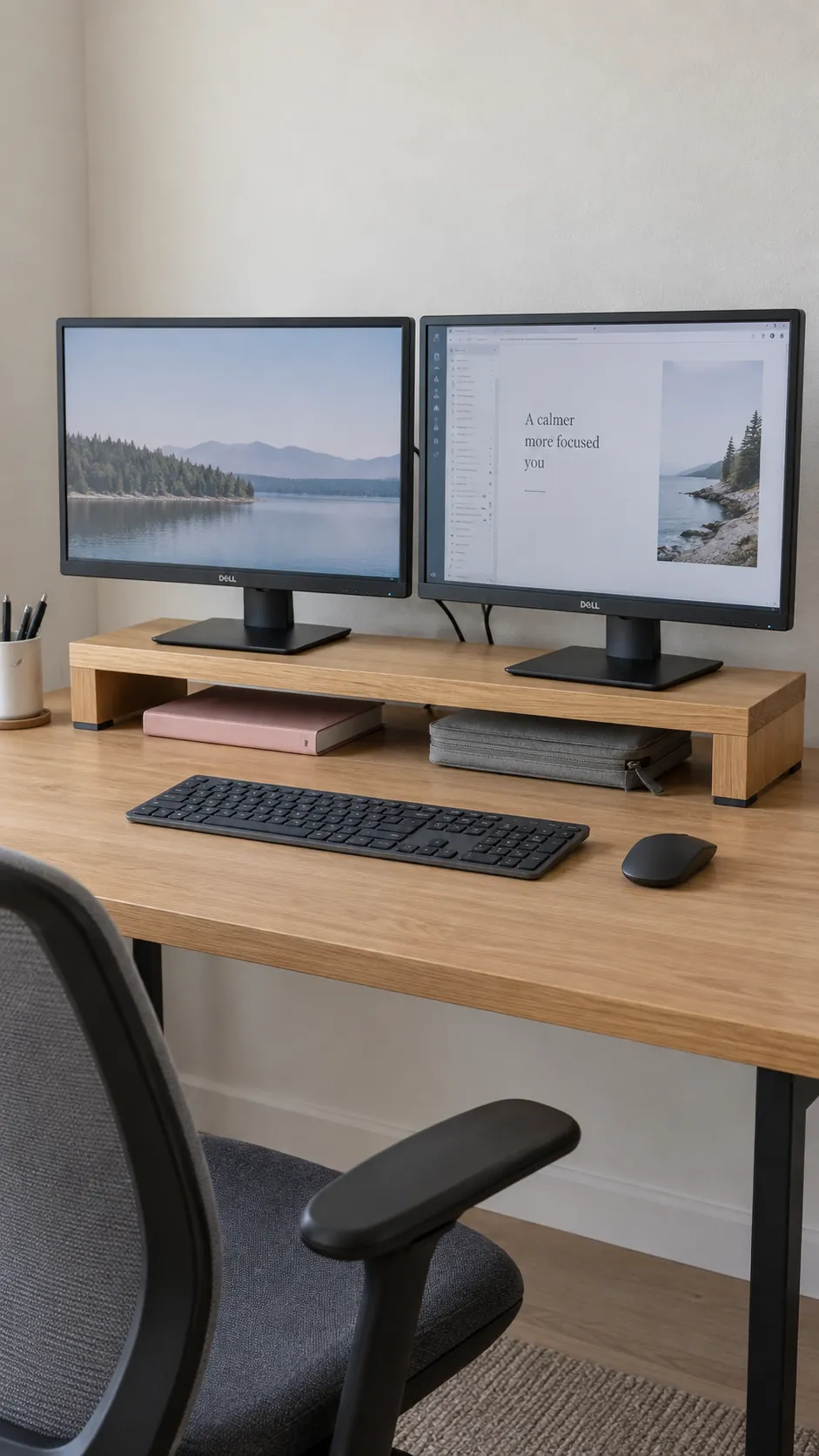
Make cable access part of the design
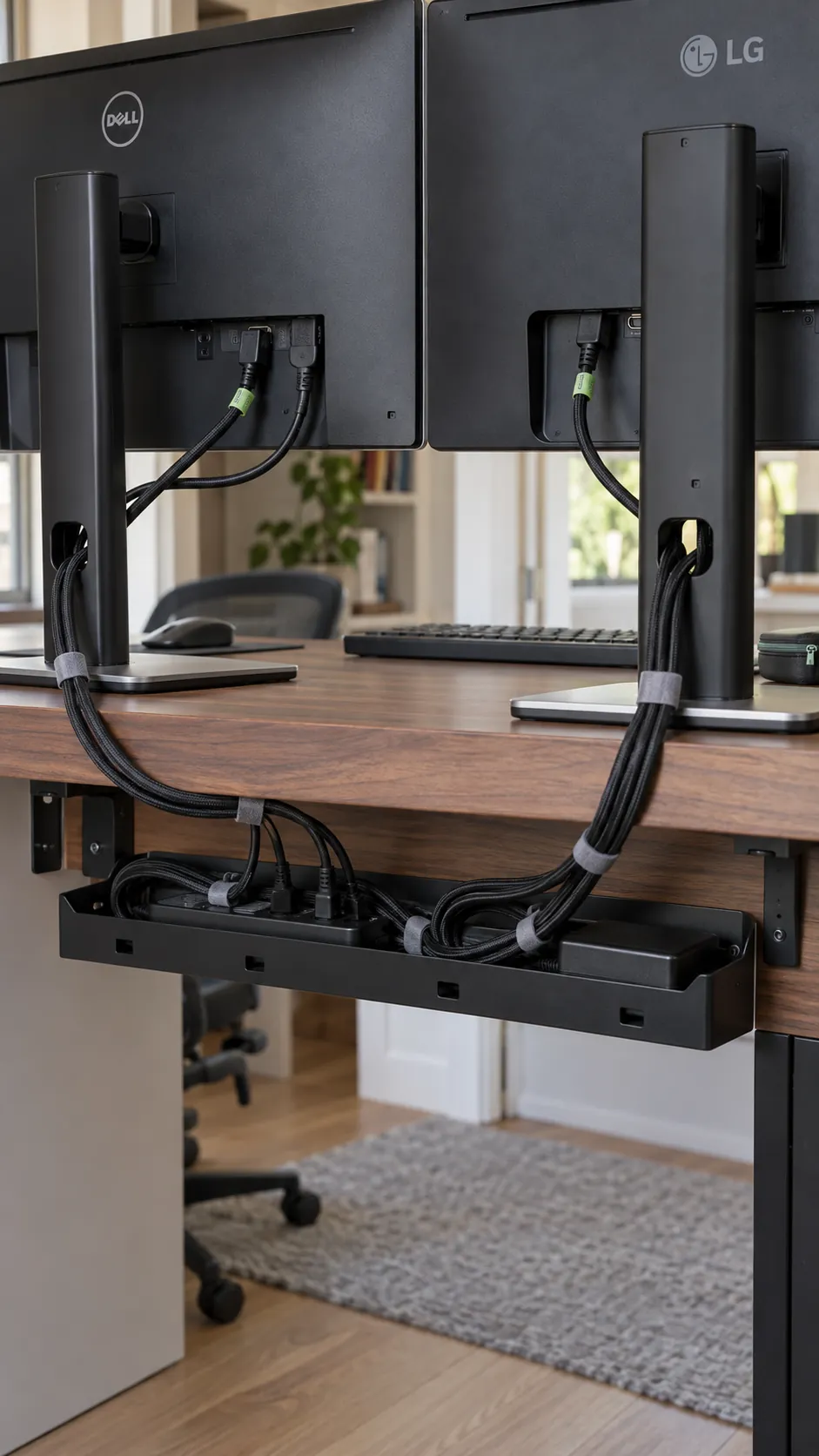
A tidy cable route should still let you unplug a monitor without dismantling the desk. Group power and signal leads loosely, label the ends if they are easy to confuse, and keep connections reachable. Fasten the bundle to the desk with appropriate clips or reusable ties rather than stretching it tight between devices. Photograph the connections before moving equipment so restoring the setup takes less guesswork.
Give two people separate adjustment space
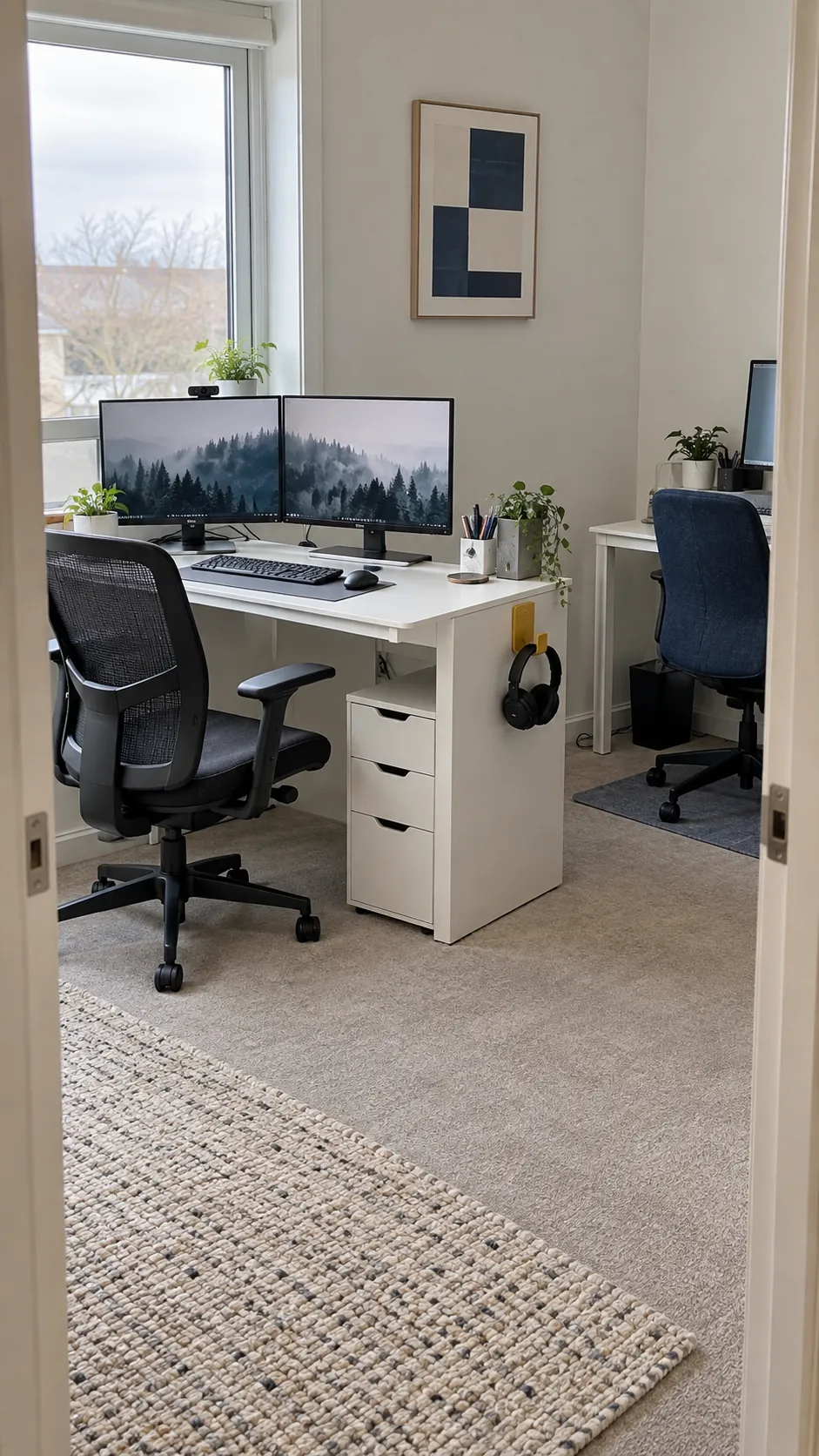
A shared office works better when each person can position their own screens and chair independently. Use enough desk length or separate desks so monitor corners do not invade the neighboring keyboard area. Plan power access for both stations without running loose cables across the walking route. Headset storage and a small boundary between work zones can reduce everyday friction. Agree on lighting and call habits before adding more equipment to a crowded room.
Mix existing monitors before replacing them
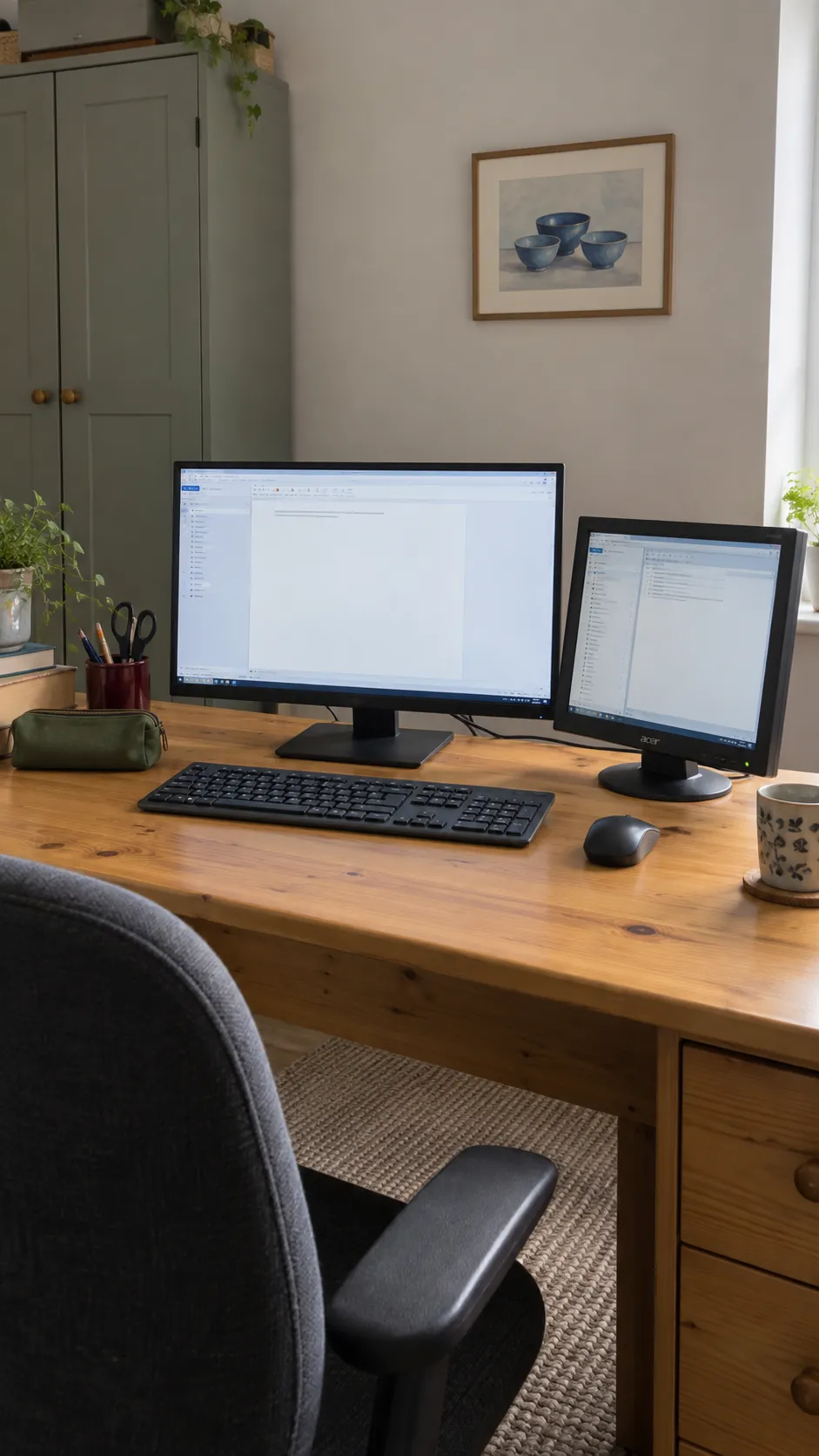
Different sized displays can still form a useful workstation if their roles are clear. Keep the better suited screen in front of you and assign reference material to the other, then adjust scaling separately so text remains readable. Match the working content height where practical rather than chasing identical outer edges. Check the computer’s display settings for their physical arrangement so the pointer moves across in the expected direction.
Leave room to change the setup after a week
A monitor setup aesthetic is most useful when it supports the way you actually work. Start with the necessary screens, a comfortable input position, and enough open desk space to notice what is missing. After a week, move the item that causes repeated reaching, glare, or head turning before adding a third monitor or another organizer. If discomfort persists, seek individual ergonomic or healthcare advice rather than assuming an accessory will solve it. The strongest work from home set up is the one you can adjust when your routine changes.