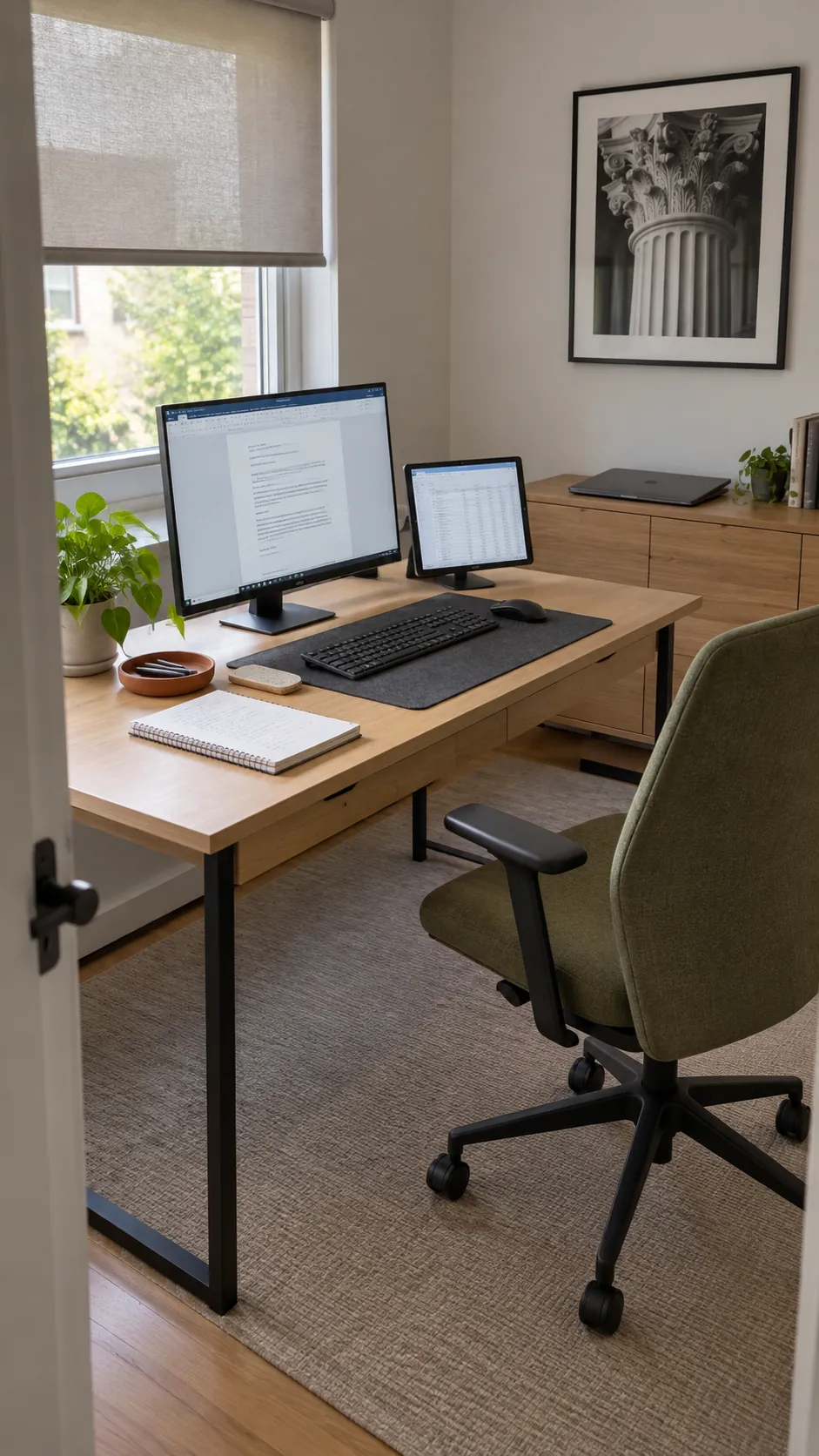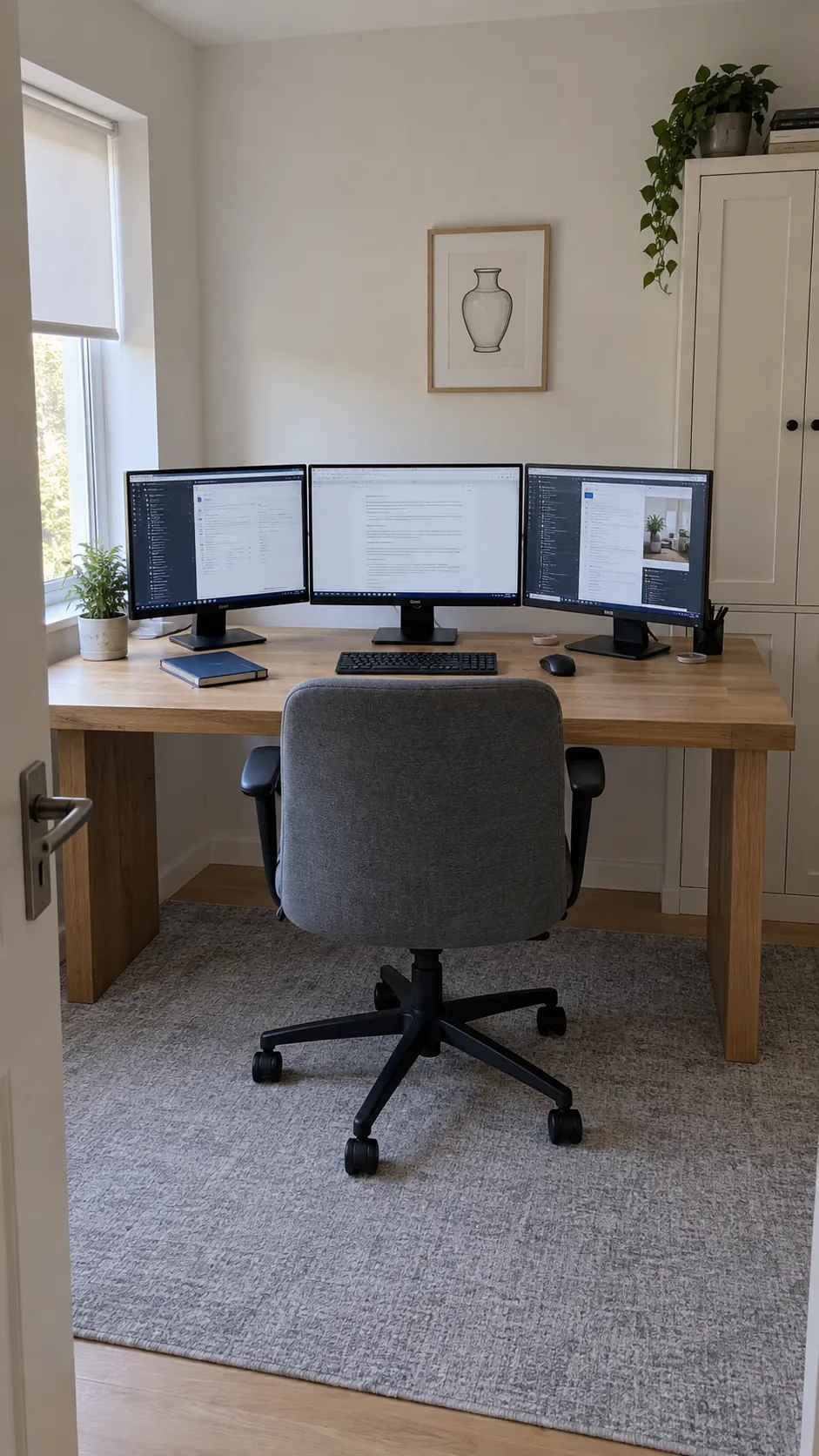
More screen space can mean less window switching, but it can also mean more turning, more cables, and less room for your hands. The useful question is which information needs to stay visible while you work. Build the arrangement around that answer, then check whether the desk and computer can support it.
Give every display a job before choosing a layout
Separate the work you actively do from information you only check. Your editor, spreadsheet, or design canvas usually deserves the central position, while a reference document can sit beside it. A chat window that needs only an occasional glance should not force the main task off to one side.
Try assigning those roles with the screens you already own. If one display spends the day showing a clock, music controls, or duplicate information, it may not justify its space and connections. Window snapping and virtual desktops can sometimes solve the same problem without another physical panel.
A multi monitor desk setup earns its keep when the extra screen removes a recurring interruption. Name that interruption before deciding how many displays belong on the desk.
Compare a compact pair with an ultrawide and a reference screen
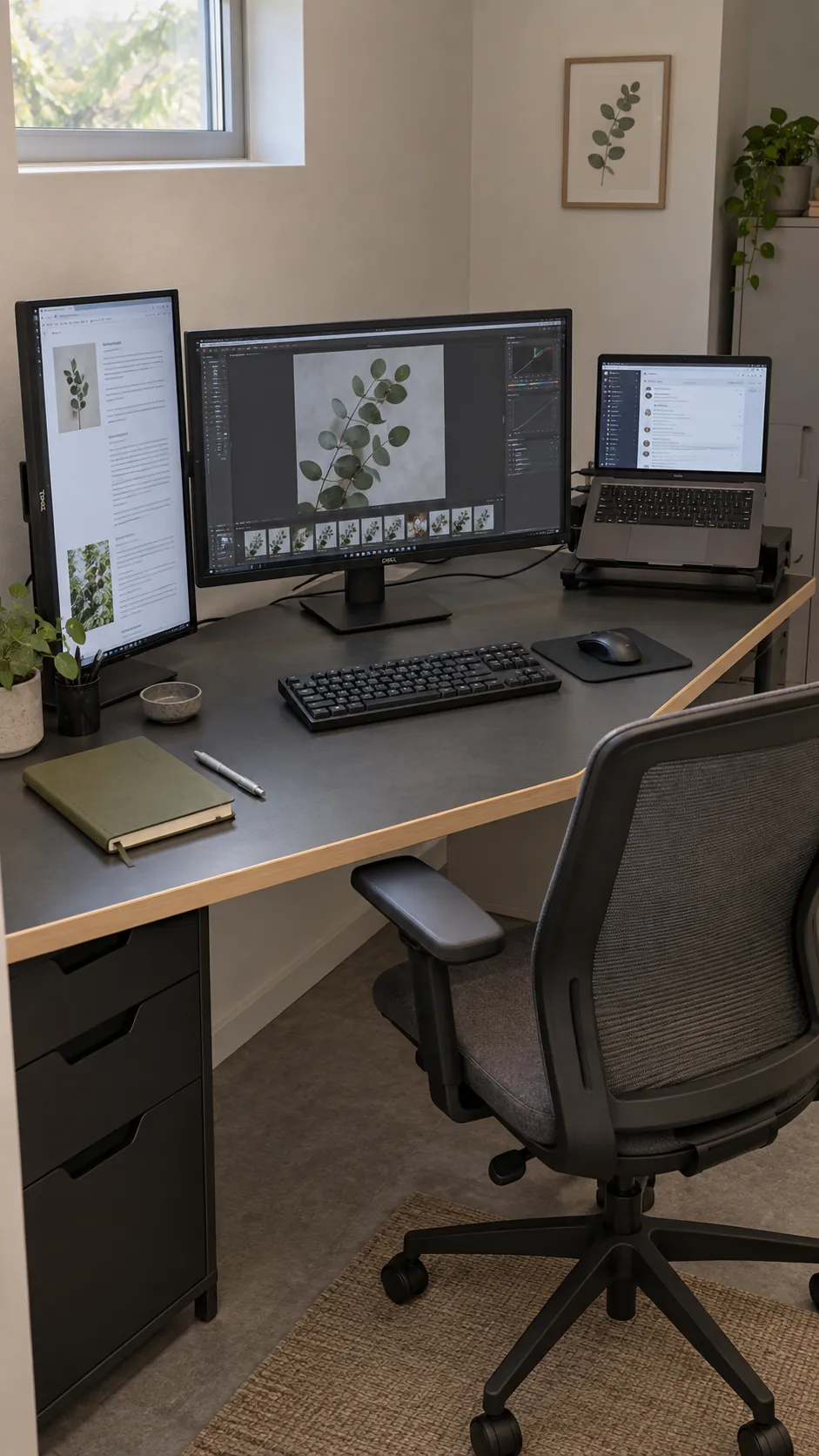
Two conventional monitors give you a natural boundary between applications and let you replace or rotate either panel independently. A landscape main display with a portrait reference screen can keep long documents visible without spreading the setup as far across the desk. Check that the portrait screen has suitable rotation support and viewing angles.
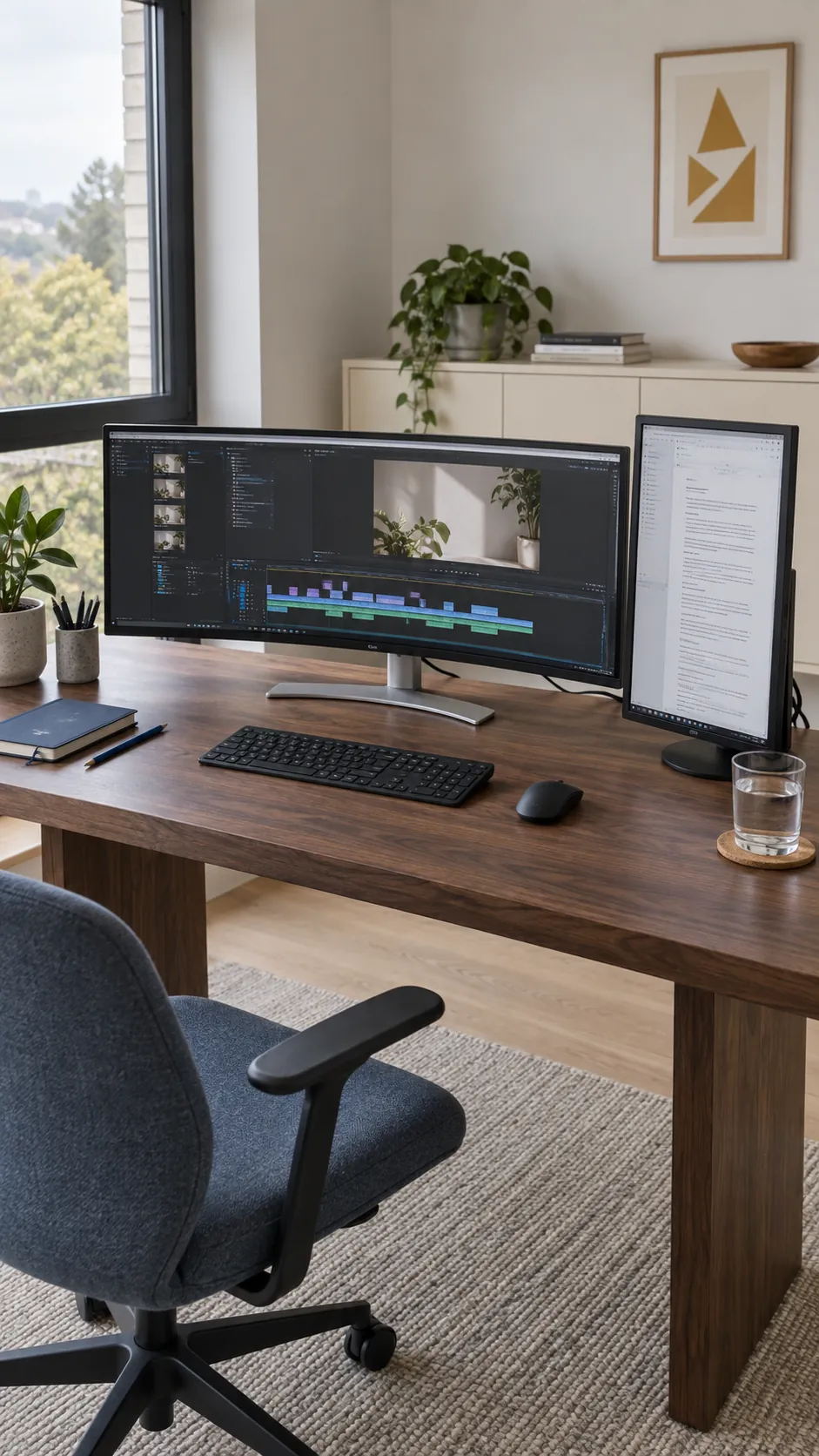
An ultrawide monitor setup offers one continuous main canvas, which can suit wide timelines or several windows arranged together. Adding a small reference display preserves a separate place for supporting material, but the combined width can still become excessive. Measure the complete arrangement, including the extra panel’s stand or arm travel, rather than assuming the ultrawide replaces every other screen.
Screen sharing is another practical difference. Test how a shared application or full display appears to someone using a smaller screen, and share a specific window when that is clearer. The best choice depends on the work you show and read, not only how much desktop area you can fit.
Keep the center of a triple setup useful
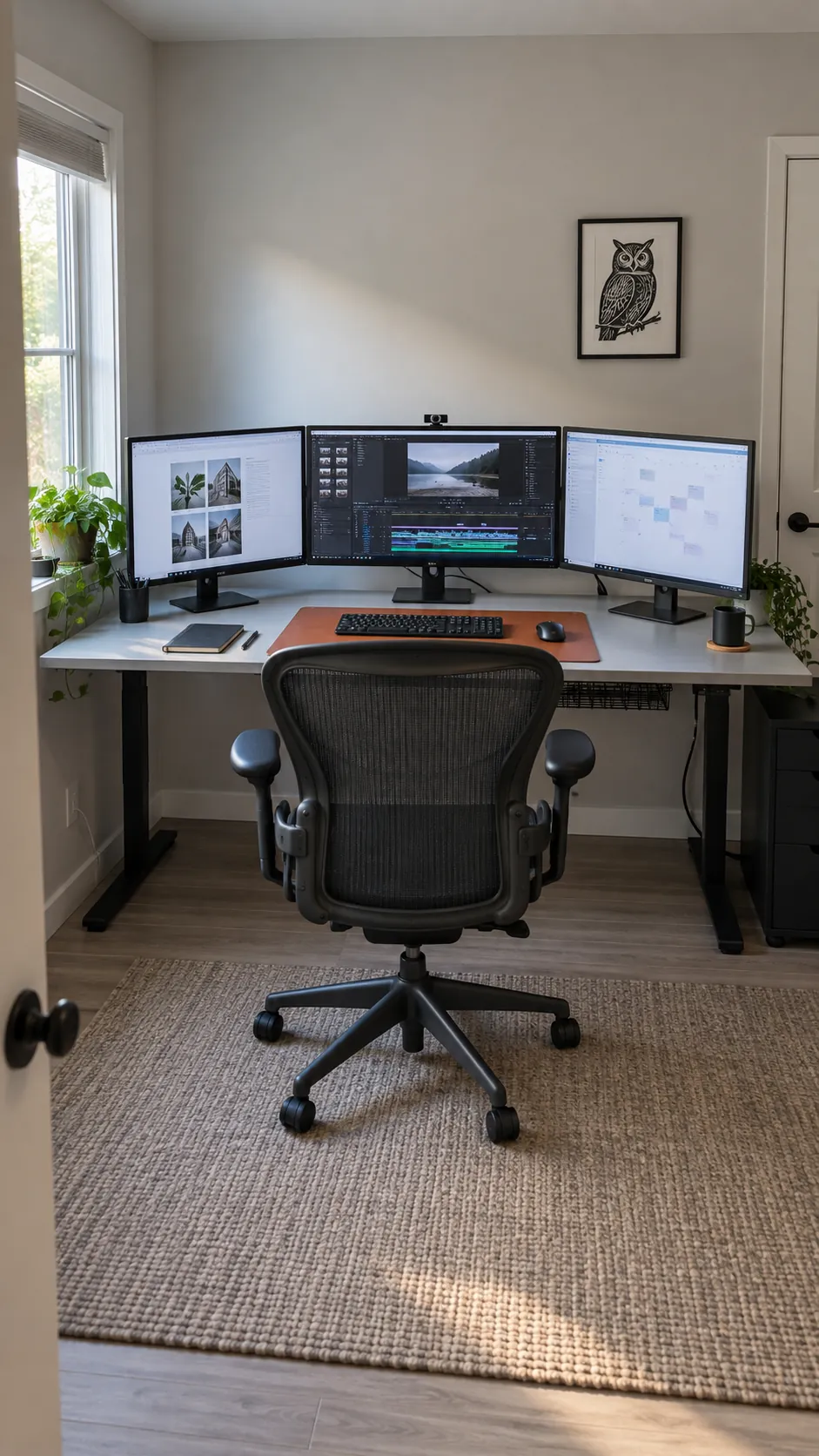
For a triple monitor setup, start with the primary screen directly ahead and bring the side panels inward only as much as the room and task require. Frequently used windows should stay within easy view. Avoid putting continuous work on an outer screen simply because the center one looks better displaying a background image.
Stacking can reduce horizontal spread, but it shifts some viewing upward. Reserve an upper panel for brief reference if that arrangement feels comfortable, and keep sustained reading or editing in the main viewing zone. If you repeatedly lift your chin or turn far to one side, reconsider the layout rather than assuming the extra screen is essential.
Treat the desk and mounts as one support system
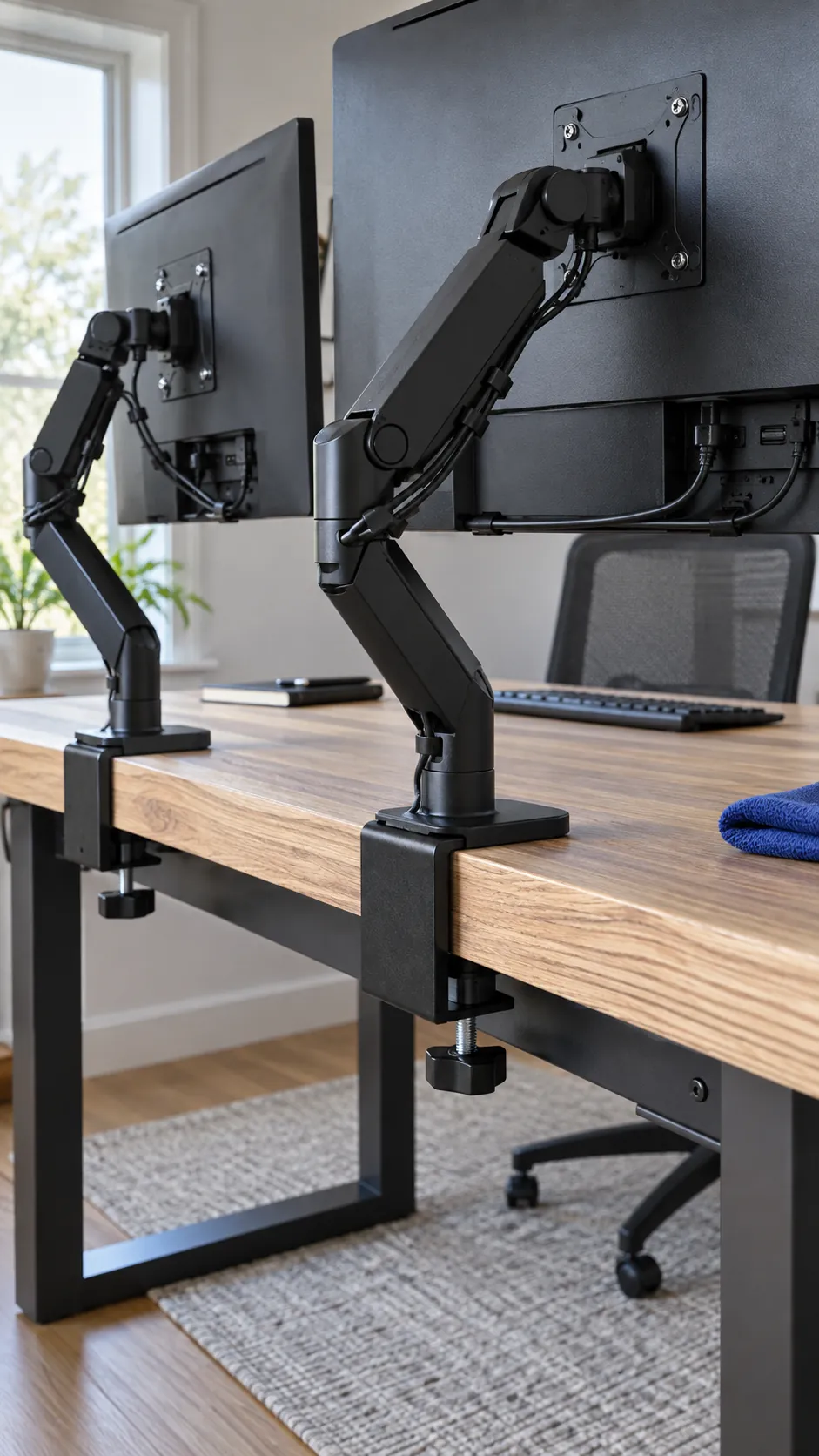
Check each monitor’s weight and mounting pattern against its intended support, including any limits specific to curved or unusually wide panels. Then inspect the desktop material, thickness, edge shape, and underside rails. A clamp that fits the edge is not proof that the surface is strong enough for the load.
Arm reach matters as much as the advertised screen count. Measure rear clearance, the distance between the supports, and where the panels end up when the arms fold. Separate arms may allow more adjustment, while a fixed multi screen bar can make individual positioning less flexible.
Use the manufacturer’s mounting instructions and suitable reinforcement only where approved for the desk and mount. Do not clamp onto glass, damaged material, or a hollow surface unless the equipment is designed for that installation. Wall mounting adds a separate question about the wall structure and fasteners, so get appropriate help when that is uncertain.
Keep the keyboard area and legroom in the plan. A beautifully aligned row of screens is not useful if a support base or computer tower takes over the place your hands or feet need.
Check display support before you hide the cables
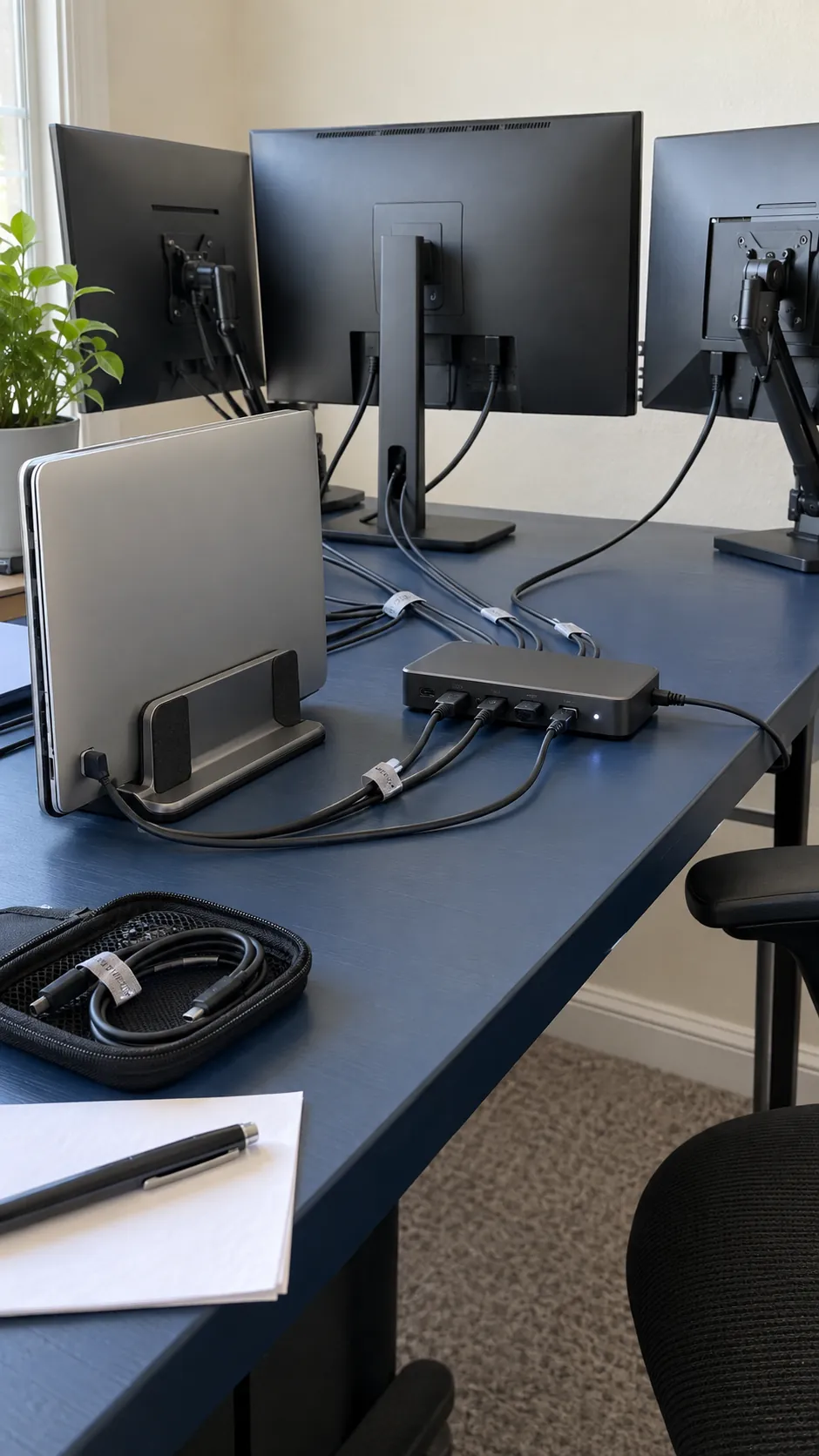
Confirm how many independent external displays the computer supports at the resolutions and refresh rates you intend to use. The graphics hardware, operating system, dock, cables, and monitor inputs all contribute to the result. A collection of available sockets does not guarantee that every screen can run the desired mode together.
For a laptop and monitor desk setup, count the laptop’s own active display too when checking the manufacturer’s limits. Some docking arrangements require drivers or have restrictions that differ between computer models. On a managed work machine, verify the approved connection method with your IT team before purchasing.
Test every panel while its connections are still easy to reach. Set the operating system’s display map to match the physical arrangement, then check pointer movement, scaling, sleep and wake behavior, and the applications you use most. Label confusing cable ends and leave enough slack for the adjustments the mounts or desk will make.
Simplify the setup when the extra screen stops helping
After several normal work sessions, look for the display you keep ignoring and the one that repeatedly pulls you out of a comfortable position. Move a useful reference window closer before adding another panel. Try a day with the least useful screen turned off to see whether anything important becomes harder.
Keep lighting and text size part of that review. Glare, tiny type, and a mismatched display map can make a good physical layout feel awkward, while a larger screen can introduce its own viewing compromises. Persistent neck or eye discomfort warrants individual professional advice rather than another accessory purchase.
The final test is simple: can you work, reach your notes, and change position without thinking about the equipment? Keep the displays that make those tasks easier, and reclaim the space taken by the ones that do not.